- General principles of subscription management
- Accessing subscription management
- Weekly newsletters
- Daily filter-based digests
- Saving subscription settings
- Usage examples
- Troubleshooting
- Tips for subscription management
General principles of subscription management
The email subscription section in your profile lets you manage all email digests in one place. Here you can configure weekly digests and manage daily digests for saved filters.
Important: You must be signed in to manage subscriptions. Changes are applied only after you click "Save".
Accessing subscription management
Step 1: Open your profile
- Sign in to the service
- Go to "Profile" in your account
- Find the "Newsletters" or "Email Subscriptions" section
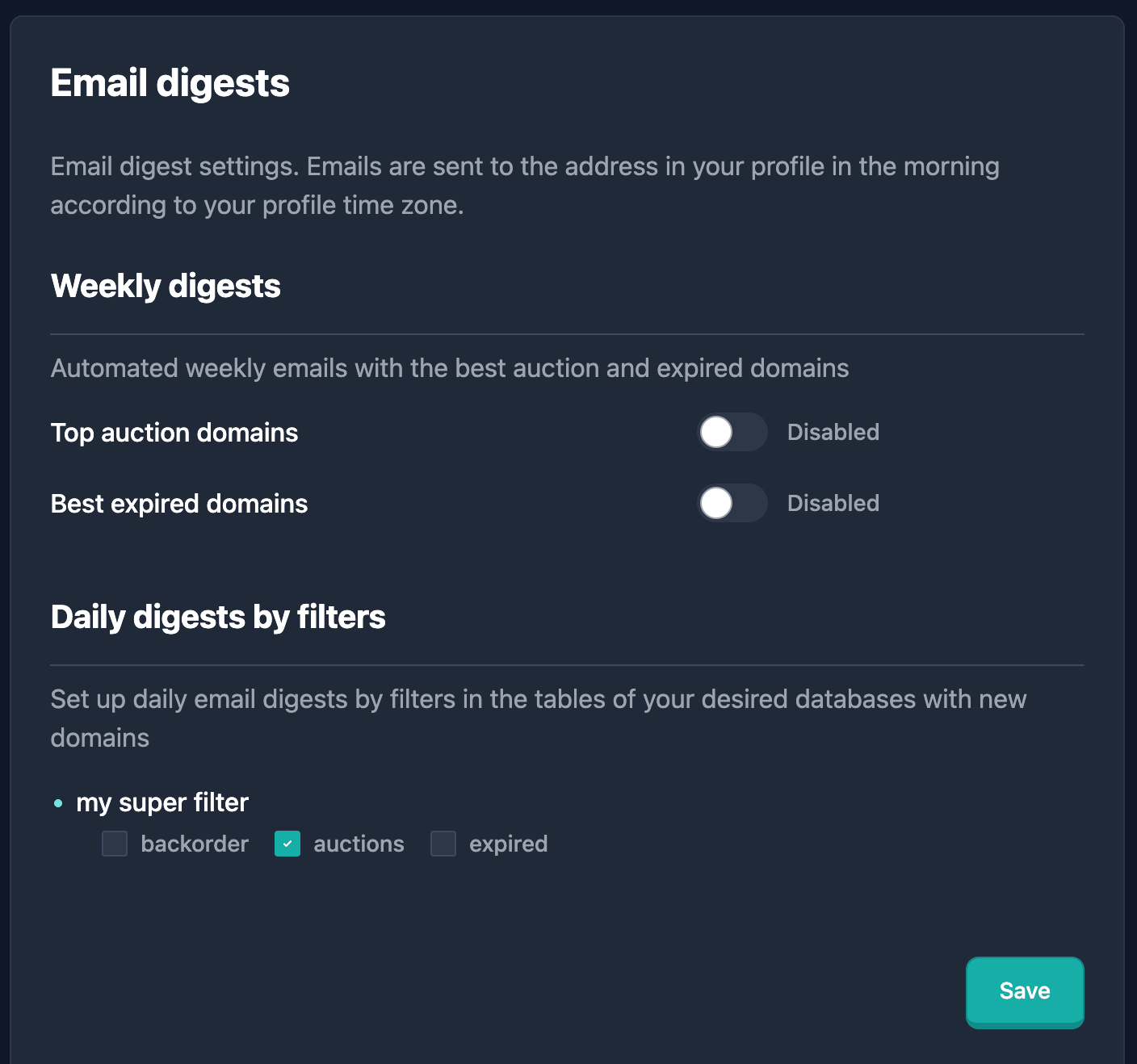
Step 2: Open the management panel
- Open the subscription management section
- A panel appears with settings for all email digests
- The panel is split into two main areas: Weekly Newsletters and Daily Newsletters
Weekly newsletters
Weekly newsletters are sent once a week and provide an overview of new domains without tying them to specific filters. These are general digests by report type.
Weekly auction newsletter
Description: A weekly overview of new domains in the auctions section. The digest lists domains added during the week, without applying filters.
Send frequency: Once per week
How to turn on:
- Open "Weekly Newsletters"
- Find "Weekly Auction Domains"
- Set the toggle to "On"
- Click "Save" to apply your settings
How to turn off:
- Find "Weekly Auction Domains"
- Set the toggle to "Off"
- Click "Save" to apply your settings
Note: The weekly auction newsletter does not require saved filters and works independently of daily digests.
Weekly expired-domains newsletter
Description: A weekly overview of new domains in the expired domains section. The digest lists domains added during the week, without applying filters.
Send frequency: Once per week
How to turn on:
- Open "Weekly Newsletters"
- Find "Weekly Expired Domains"
- Set the toggle to "On"
- Click "Save" to apply your settings
How to turn off:
- Find "Weekly Expired Domains"
- Set the toggle to "Off"
- Click "Save" to apply your settings
Note: The weekly expired-domains newsletter does not require saved filters and works independently of daily digests.
Weekly newsletter behavior
- No filters required: Weekly newsletters do not require saved filters
- Broad overview: Digests show a general overview of new domains without specific criteria
- Regular cadence: Digests are sent strictly once per week
- Convenience: Useful for monitoring new domains broadly without configuring filters
Daily filter-based digests
Daily digests are sent when new domains appear that match your saved filters. For each filter you can subscribe to different report types.
Viewing filters with subscriptions
- Open "Daily Newsletters"
- You will see a list of all your saved filters
- Each filter shows its name and the available report types
Important: Only saved user filters appear in the list. Preset filters do not support email subscriptions.
Managing subscriptions per filter
For each saved filter you can manage subscriptions to these report types:
- Auctions — new domains in the auctions section
- Expired — new domains in the expired-domains section
- Backorder — new domains in the backorder section
How to subscribe to a report type:
- Find the filter in the daily digests list
- Find the checkbox next to the report type name (for example, "Auctions")
- Check the box
- Click "Save" to apply your settings
How to unsubscribe from a report type:
- Find the filter in the daily digests list
- Find the checkbox next to the report type name
- Uncheck the box
- Click "Save" to apply your settings
Important: You can subscribe to multiple report types for the same filter at once. Each subscription is controlled independently via its own checkbox.
Daily digest behavior
- Tied to filters: Digests work only for saved user filters
- Flexibility: You can subscribe to different report types for one filter
- Frequency: Digests are sent when new domains match the filter
- Independence: Each report-type subscription is managed separately
Saving subscription settings
How to save changes
- After changing subscription settings (weekly toggles or daily checkboxes)
- Scroll to the "Save" button at the bottom
- Click "Save"
- Wait for the success confirmation
Important: Subscription changes apply only after you click "Save". If you leave the page without saving, your changes are lost.
Save feedback
- After a successful save, a success message appears
- Settings take effect immediately after saving
- "Save" may be temporarily disabled while saving is in progress
Usage examples
Example 1: Configure weekly newsletters
Goal: Turn on weekly digests for auctions and expired domains for a broad view of new domains.
Steps:
- Open subscription management in your profile
- Find "Weekly Newsletters"
- Turn on the toggle for "Weekly Auction Domains"
- Turn on the toggle for "Weekly Expired Domains"
- Click "Save"
Result: You receive weekly overviews of new domains in auctions and expired domains.
Example 2: Daily digests for one filter
Goal: Subscribe to daily digests for the filter "High KarmaScore Domains" for auctions and backorder.
Steps:
- Open subscription management in your profile
- Find "Daily Newsletters"
- Find "High KarmaScore Domains" in the list
- Check "Auctions"
- Check "Backorder"
- Click "Save"
Result: You receive daily notifications about new high–KarmaScore domains in auctions and backorder.
Example 3: Multiple filters
Goal: Configure subscriptions for several filters with different report types.
Steps:
- Open subscription management in your profile
- Find "Daily Newsletters"
- For "Technology Domains":
- Check "Expired"
- For "Business Domains":
- Check "Auctions"
- Check "Backorder"
- Click "Save"
Result: You receive notifications per filter according to the selected report types.
Troubleshooting
Issue: "Save" is disabled
Cause: The button may be disabled while saving is in progress or when there are no changes.
What to do:
- Wait a few seconds if a save is in progress
- Make sure you changed a setting
- Refresh the page and try again
Issue: Changes are not saved
Possible causes:
- Network issues
- Server issues
- "Save" was not clicked
What to do:
- Check your internet connection
- Confirm you clicked "Save" after making changes
- Refresh the page and try again
- If the problem persists, contact support
Issue: Filters do not appear in the daily list
Possible causes:
- No saved user filters
- Filters were not saved correctly
What to do:
- Make sure you have saved user filters
- Save filters in the domain search section
- Refresh the subscription management page
Issue: Email notifications do not arrive
Possible causes:
- Settings were not saved
- Messages are going to spam
- Wrong email address in your profile
- No new domains match your filters
What to do:
- Confirm settings were saved ("Save" was clicked)
- Check your Spam folder
- Add the sender address to your trusted list
- Verify the email address in your profile
- Confirm there are new domains matching your filters
Tips for subscription management
-
Use centralized management: Manage all subscriptions in one place for clarity and control.
-
Review active subscriptions regularly: Periodically review the list and remove what you no longer need.
-
Save your changes: Always click "Save" after changing settings.
-
Combine weekly and daily digests: Use weekly digests for a broad overview and daily digests for specific filters.
-
Use multiple subscriptions: Subscribe to several report types for one filter when it fits your workflow.
-
Check the Spam folder: Make sure notifications are not filtered as spam; add the sender to your trusted list.
-
Update filters: If your search criteria change, update the filter — subscriptions automatically use the new criteria.
-
Keep your inbox manageable: Unsubscribe from digests you no longer need to avoid inbox overload.