- General principles of CSV export
- How to export to CSV
- CSV data format
- Export settings
- Usage examples
- Troubleshooting
- Tips for CSV export
General principles of CSV export
CSV export lets you save domain search results as a CSV file for further analysis in Excel, Google Sheets, or other spreadsheet apps. Export uses the current filters and sort order applied to the domain list.
How to export to CSV
Step 1: Set filters and sorting
- Apply the filters you need for the domain search
- Configure table sorting and columns (choose field and sort direction)
- Confirm the results look correct
Note: The export will only include domains that match the applied filters.
Step 2: Open the export menu
- Find the CSV export button in the UI (CSV file icon) on the table filter toolbar
- Click it — a dropdown opens with export options
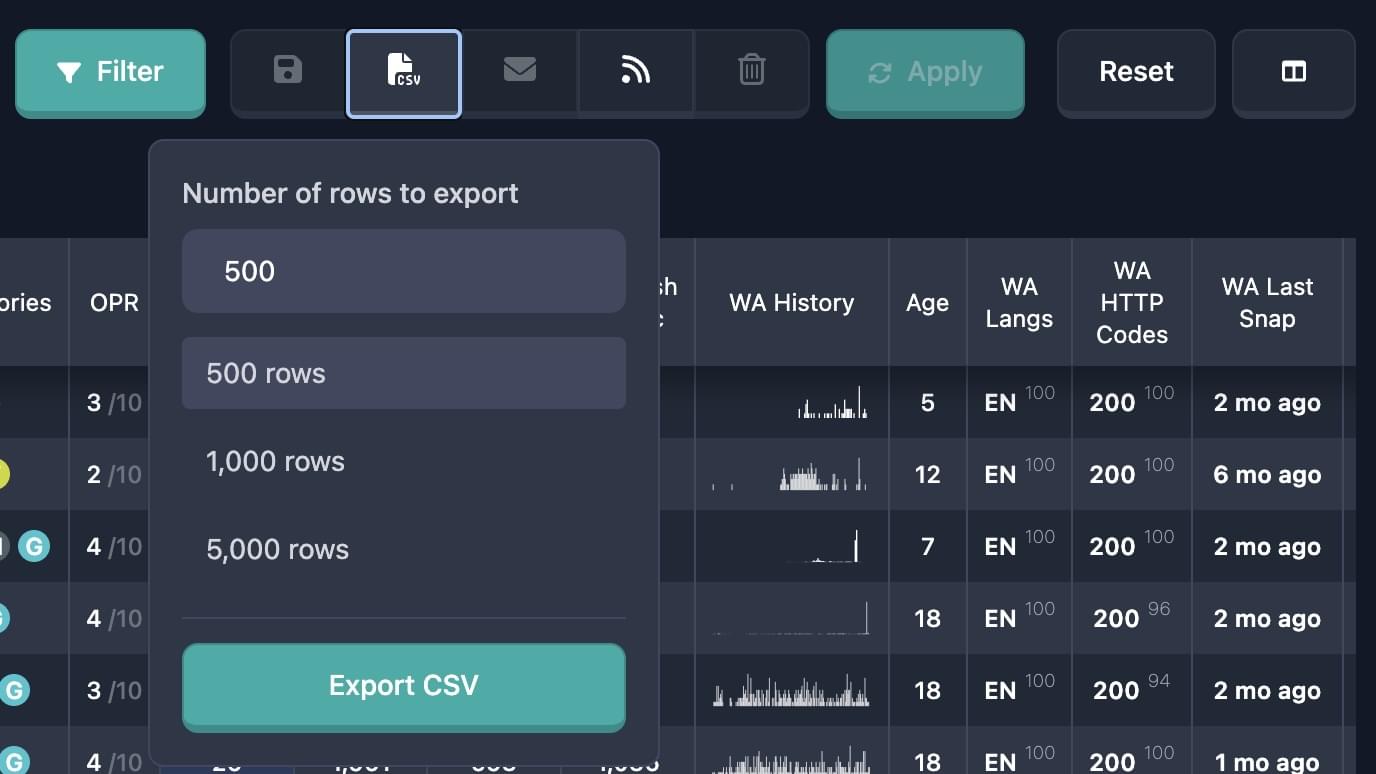
Step 3: Choose row count
In the dropdown you can set how many rows to export:
- Manual input: Enter a number in the "Number of rows to export" field (from 1 to 1000)
- Quick pick: Click one of the presets:
- 100 rows — export 100 rows
- 500 rows — export 500 rows
- 1000 rows — export 1000 rows
Important: The maximum number of rows per export is 1000. If there are more results, export in batches or tighten your filters.
Step 4: Start export
- Click "Export CSV" at the bottom of the menu
- Wait for the export to finish — the file downloads automatically
Step 5: Save the file
- The file is saved to your browser’s default download folder
- The file name is generated automatically:
karma-domains__{report_type}_reports__{date_time}.csv - Example:
karma-domains__auctions_reports__2024-01-15_14-30-45.csv
CSV data format
File structure
The CSV file contains:
- Column headers in the first row
- Domain data in following rows
- Delimiter: comma (
,) - Encoding: UTF-8
File contents
The file includes all domain data shown in the results table, including:
- Core domain info (name, TLD, date added)
- Metrics (Karma Score, Karma Metric)
- Data from various sources (Moz, Majestic, SimilarWeb, etc.)
- Categories and other attributes
Export settings
Row count
- Minimum: 1 row
- Maximum: 1000 rows
- Default: 100 rows
- Presets: 100, 500, 1000
Using filters
Export automatically applies all active filters:
- General filters (TLD, categories, KarmaScore, etc.)
- Source filters (Moz, Majestic, SimilarWeb, etc.)
- Special filters (auctions, Wayback Machine, etc.)
Important: Only domains matching all applied filters at once are exported.
Using sorting
Export uses the current table sort:
- Sort field — the column you sorted by
- Sort direction — ascending or descending
Note: If no sort is set, the default sort applies (typically by date added, descending).
Authentication
You must be logged in to export CSV:
- If you are not logged in, you will see: "You need to login to export CSV"
- Log in before exporting
Usage examples
Example 1: Export first 100 results
Goal: Export the first 100 domains with high KarmaScore.
Steps:
- Apply filter: KarmaScore min: 50
- Sort by KarmaScore (descending)
- Open the CSV export menu
- Choose "100 rows"
- Click "Export CSV"
Result: A file with 100 domains sorted by KarmaScore.
Example 2: Export 500 domains with filters
Goal: Export 500 domains in category "Technology" with Moz data.
Steps:
- Apply filter: Category = "Technology"
- Apply filter: Moz DA min: 30
- Open the CSV export menu
- Enter 500 in the row count field
- Click "Export CSV"
Result: A file with up to 500 domains from "Technology" with DA >= 30.
Example 3: Export maximum rows
Goal: Export up to 1000 domains with current filters.
Steps:
- Apply your filters
- Open the CSV export menu
- Choose "1000 rows"
- Click "Export CSV"
Result: A file with up to 1000 domains (or fewer if fewer results exist).
Troubleshooting
"You need to login to export CSV"
Cause: You are not logged in.
Fix: Log in and try again.
"Captcha verification failed"
Cause: Captcha was not completed successfully.
Fix: Try again, complete the captcha carefully, and check your connection.
"CSV export failed"
Possible causes:
- Server issue
- Rate limit exceeded
- Invalid export parameters
Fix: Wait a few minutes and retry; ensure row count is ≤ 1000; verify filters; contact support if it persists.
File does not download
Possible causes:
- Browser blocking downloads
- Browser settings
- Insufficient disk space
Fix: Check download permissions for the site; free disk space; try another browser.
File empty or incomplete
Possible causes:
- No rows match the filters
- Connection interrupted during export
- Encoding issues
Fix: Relax filters and retry; check connection; open the file in an editor that supports UTF-8.
Tips for CSV export
-
Tighten filters first so the export contains only what you need.
-
Set sorting before export to order rows the way you want.
-
Export in batches when you have more than 1000 matching domains — use narrower filters or date ranges.
-
Check row count — requested rows cannot exceed available results.
-
Use presets (100, 500, 1000) for quick exports.
-
Filenames include date and time — you can rename after download if needed.
-
Open in a spreadsheet app and verify data after export.
-
Use Excel, Google Sheets, or LibreOffice Calc for correct display of UTF-8 CSV.