- Sorting
- Tooltips
- Viewed report markers
- Recheck in the report table
- Copy domains to clipboard
- Pagination
- Rows per page
Sorting
The report table supports sorting on many columns. This helps order domains by the metric you care about: date added, metrics (Karma, DA, TF, etc.), auction fields, and more.
How to sort
- Find the column header you want to sort by. Sortable columns are visually distinct and respond to hover.
- Click the header once. The table reloads and shows data descending (larger values first). A down arrow appears next to the column name.
- Click the same header again. Sort direction switches to ascending (smaller values first). The arrow points up.
- When you change sorting, the table always goes to page 1.
Important: The active sort column is marked with an arrow (↑ or ↓). Sorting works together with current filters and affects CSV export if you export data.
Example: To list domains with the highest Karma Score first, click the "Karma" header once. To put the lowest values first, click again.
Tooltips
The table uses tooltips that show extra information when you hover over UI elements.
Where tooltips appear
- Column headers — hovering the header shows a short explanation of the metric and how to read values.
- Copy-domains button — explains that domains from the current table page are copied to the clipboard.
- Some cells — for columns such as languages, countries, or traffic sources, hovering may show a breakdown: language or country shares, source list with percentages, etc.

How to use them
- Hover the column header or cell you need.
- After a short delay the tooltip appears.
- Move the pointer away to hide it.
Tooltips require no click and do not block table work; they help you understand columns and values without opening the help center.
Viewed report markers
The service remembers which reports you have already opened and marks those rows in the table. That makes it easier to tell viewed domains from unviewed ones in long lists.
How it works
- Automatic marking: As soon as you open a report for a domain (row click or link), that report counts as viewed.
- Visual difference: Viewed rows are styled differently (e.g. colour or style). A viewed indicator may appear next to the domain.
- Persistence: The viewed list is stored locally in your browser. When you return to the same database or task, previously viewed reports stay marked.

Markers are kept per report type and are not cleared when you change page or filters. They reset only if you clear site data in the browser.
Recheck in the report table
You can send domains for a recheck from the table without typing a list manually. This uses the recheck queue.
When recheck is available
Recheck is not available for every row. If a domain can be rechecked, an icon appears with the tooltip «Recheck domain for credits» (wording may match the UI in your language).
How to add domains to recheck
- In the domain row, click the recheck icon.
- A «Domain check» panel appears with selected domains as badges; you can remove individual domains.
- Click «Add task» to create a checker task and send domains for reprocessing.

Limits
- You can add up to 100 domains to one queue.
- The create-task button is disabled if you do not have enough credits (priced per domain).
After the task is created, results appear in the task list and in the table for the checker type.
Details on the task and billing — in the Domain check section.
Copy domains to clipboard
You can copy all domains from the current table page to the clipboard in one action — one domain per line. Useful for pasting into another tool, a sheet, or a text editor.
How to copy
- Make sure the table shows the results you need (apply filters and pick a page if needed).
- Find the «Domain» column (first column).
- In the column header, to the right of the title, click the copy icon.
- All domains on the current page are copied to the clipboard, one per line.
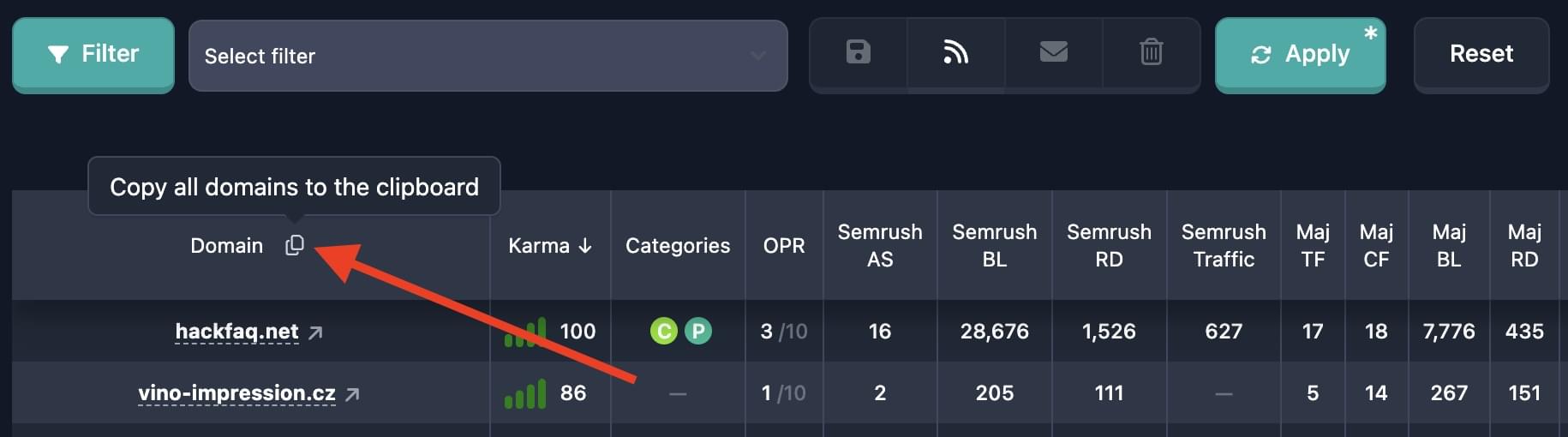
Important: Only domains on the page you are viewing are copied. To copy more domains, increase rows per page, go to another page and copy again, or use CSV export for large volumes.
Clipboard format: one domain per line, no commas or extra characters. Example:
example.com
another-domain.org
third-site.net
If the page has no domains, clicking copy may show an error message.
Pagination
When there are many reports, results are split into pages. Page controls are below the table.
Controls
- First page — go to page 1 (double arrow left).
- Previous — go one page back (single arrow left).
- Page numbers — buttons for several pages around the current one. Current page is highlighted.
- Next — go one page forward (single arrow right).
- Last page — go to the last page (double arrow right). If there are very many results (e.g. 10,000+), last page may be disabled by service limits.

On the left, total matching reports (after filters) is shown so you can estimate page count at the current page size.
How to use
- Open the page you need using numbers or prev/next.
- After filters or sorting change, the table usually returns to page 1.
- While data loads, navigation buttons may be disabled.
Current page number and rows-per-page (see below) are saved in the browser for this table so the UI restores next time.
Rows per page
How many rows appear per page affects page count and readability. You can change this in the report table.
Options
In the pagination block below the table, on the right, there is a dropdown:
- 10 — 10 rows per page
- 30 — 30 rows (often the default)
- 70 — 70 rows
- 100 — 100 rows
How to change
- Find the dropdown in the bottom bar (next to page buttons).
- Open it and choose 10, 30, 70, or 100.
- The table reloads with that many rows per page; page count is recalculated. You are moved to page 1.
Important: The choice is saved in the browser for this table. Next time you open the same section (database or task), page size is restored unless site data was cleared.
Tip: Use 10 or 30 for quick scanning and copy. Use 70 or 100 to see more rows with fewer page turns — loading may take longer.