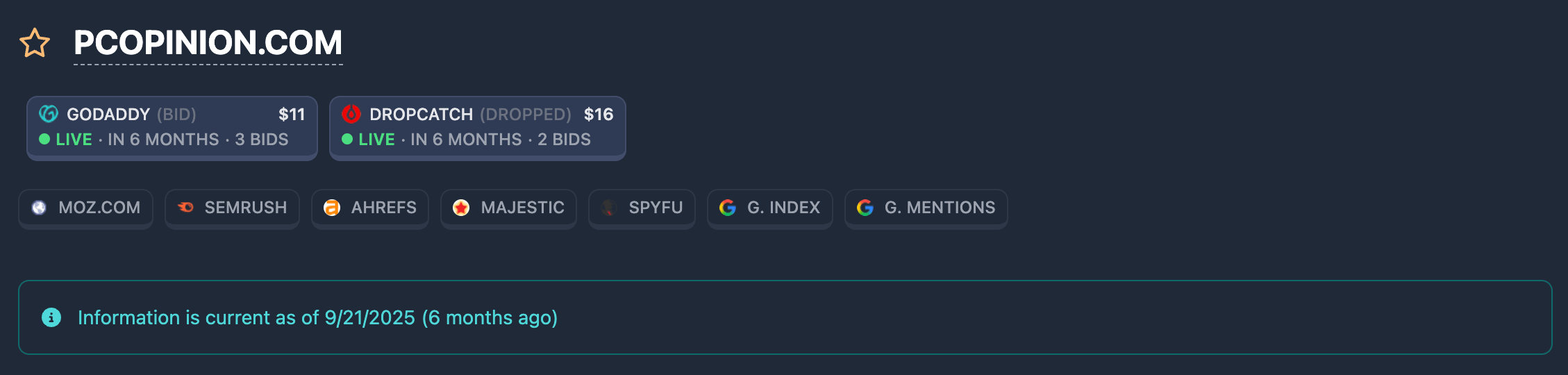
On the report page you see the header (navigation, domain name, actions, and check date) and the Summary block — a compact overview of domain metrics from different services. Below that are tabs with detailed sections (archive, auctions, etc.). This article covers only the header and the summary block.
Page title: domain and actions
Favorite star
To the left of the domain name is the favorite star.
- Empty star — the domain is not in favorites. Click to add to favorites.
- Filled star — the domain is in favorites. Click to remove from favorites.
Adding and removing favorites is saved on the server. You must be signed in to use favorites.
See also: How to filter domains by “Favorites”.
“Open report” button (demo mode)

If the report is opened in demo mode (data partially hidden), a masked domain name is shown instead of the full name, and the header includes an “Open report” button.
- Click the button to open the full report for a credit charge (shown on the button, e.g. “-X ⚡”).
- If you are not signed in, a registration/sign-in window opens.
- If you do not have an unlimited plan and lack credits, a window with plan information opens.
After the report opens successfully, full data loads, masking is removed, and the button disappears from the header.
Domain name
- Normal report: the full domain name is shown. Clicking the domain copies it to the clipboard (dotted underline indicates this).
- Demo mode: a masked name is shown (part hidden); copying is not available.
The displayed name is normalized for readability (Punycode is decoded for IDN domains).
Quick action button for the domain
Next to the domain there may be a quick action button (for reports from the Auctions, Expired, Backorder databases):
- Expired: the button goes to registration/redemption for the domain (external service).
- Auctions / Backorder: the button opens a menu with links to active auctions for this domain on different venues. Choose a venue — the lot page opens.
Quick links to SEO services block
Under the title is a row of link buttons to external services: SEMrush, Ahrefs, Moz, Majestic, SpyFu, etc. Each button opens the corresponding service (usually with the domain prefilled) in a new tab.
Use this block to jump quickly to detailed domain analysis in your chosen tool. In demo mode links may be inactive.
Check date information
Under the links block, the date (and time) of the last report check and a short informational text are shown.

Reports from the Expired database
For reports from the Expired database, the block may appear in one of three variants:
- Domain dropped (expired): green banner. Check date is shown (and “how long ago”). You should verify current status on Who.is.
- Domain did not drop: red banner. On the stated date the domain was still registered.
- Re-check needed: orange banner. Data is stale or drop status is unknown. For signed-in users a “Check drop” button is available — it sends a re-check request.
The same block shows the report added date. On the right there may be a Who.is button — opens who.is for WHOIS lookup (not shown in demo).
Other report types
For reports from other databases (Auctions, Backorder, Checker) a single informational banner is shown: a message that report data is current as of the stated check date (with relative time, e.g. “3 days ago”).
“Summary” block (Report Summary)
The Summary block combines key domain metrics from several services in one panel. Metrics are shown as circular charts (0–100 or 0–10), mini charts, or numbers. If data is missing, a dash “-” is shown.
Clicking a vendor block takes you to the corresponding tab with detailed data in the report.
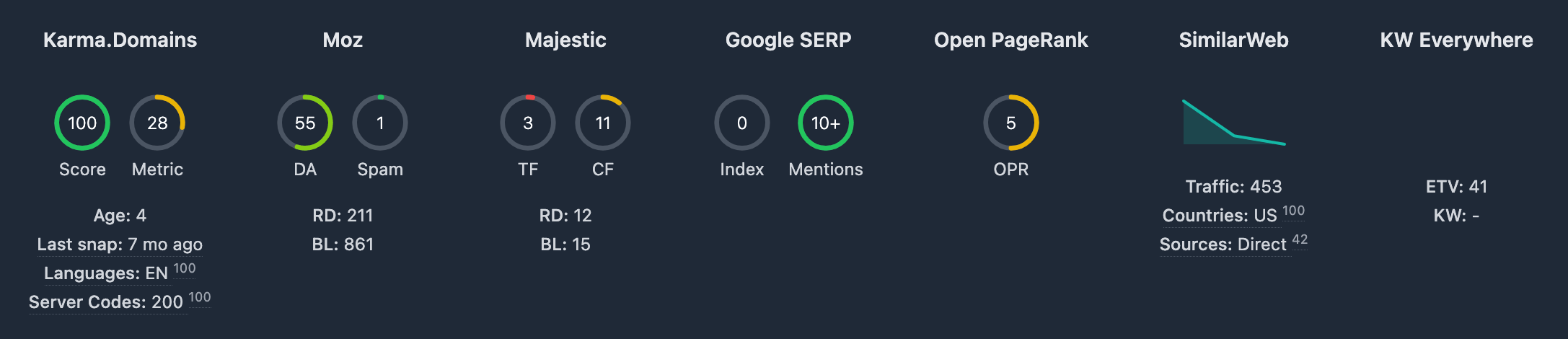
The number of metrics and data vendors may change with new updates.
Karma.Domains
- Score — Karma Content Score (0–100): content quality estimate from Wayback Machine data. Circle color depends on thresholds (low / medium / high).
- Metric — Karma Domain Metric (0–100): composite domain quality indicator.
Also shown:
- Age — domain age (years).
- Last snap — when the last archive snapshot was (relative time). Hover shows exact date and time.
- Languages — main content language and page share (%). Hover tooltip lists all languages and shares.
- Codes — main HTTP response codes from the archive and their shares. Hover shows the full list.
Moz
Moz service data.
- DA — Domain Authority (0–100).
- Spam — Spam Score (0–100). Higher values mean higher spam risk (color scale is inverted).
- RD — number of referring root domains (number).
- BL — number of external pages (number).
Majestic
Majestic service data.
- TF — Trust Flow (0–100).
- CF — Citation Flow (0–100).
- RD — number of referring domains (number).
- BL — number of backlinks (number).
Open PageRank
- OPR — Open PageRank indicator (scale up to 10), shown as a circular chart.
SimilarWeb
SimilarWeb service data.
- Chart — estimated monthly traffic by month (sparkline).
- Traffic — traffic value (visit count).
- Countries — main country code and traffic share (%). Tooltip — list of countries and shares.
- Sources — main traffic source and percent. Tooltip — all sources and shares.
Additional information under the metrics
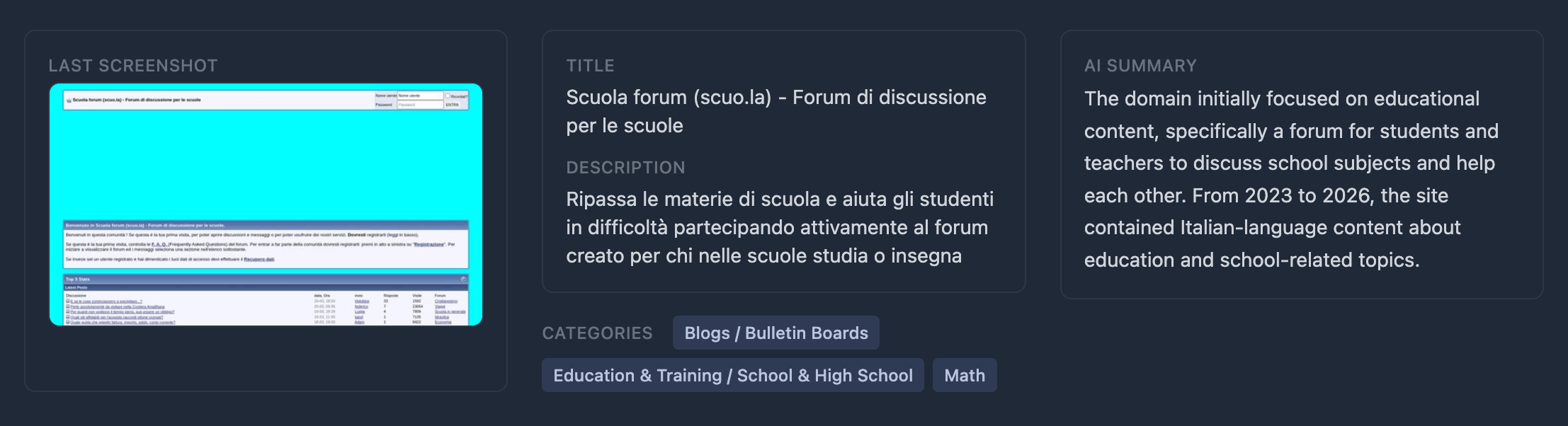
Under the metrics grid in the summary block, three columns of information are shown.
First column:
- Last site screenshot from Wayback Machine
- May be unavailable
Second column:
- Title — page title from the last successful archive snapshot (status 200). If no data — “-”.
- Description — meta description from the same snapshot. If none — “-”.
- Categories — topical categories for the domain from different providers. Shown as badges; hover on a badge shows the provider name. Categories like “Good site”, “Placeholders”, “Uncategorized”, “Popular” are not shown.
Third column:
- AI Summary — short automatic text summary for the domain. If no summary was generated, the block is hidden.
What’s next
Below the summary block is a horizontal divider, then tabs with detailed report sections: Wayback Machine, Karma.Domains, Moz, Majestic, SimilarWeb, Trustpilot, Blacklists, Categories, Auctions, Information and more. Tab contents are described in separate articles in the reports help section.