- How filters work
- Favorites filter (Your favorites)
- Notes filter (With notes)
- Report tags filter (Report tags)
- Report added date filter (Added at)
- Karma Content Score filter
- Karma Domain Metric filter
- Categories filter
- Combining filters
- Common issues and fixes
- Tips
How filters work
All filters use logical AND — when you use several filters at once, the system finds domains that match all specified conditions at the same time.
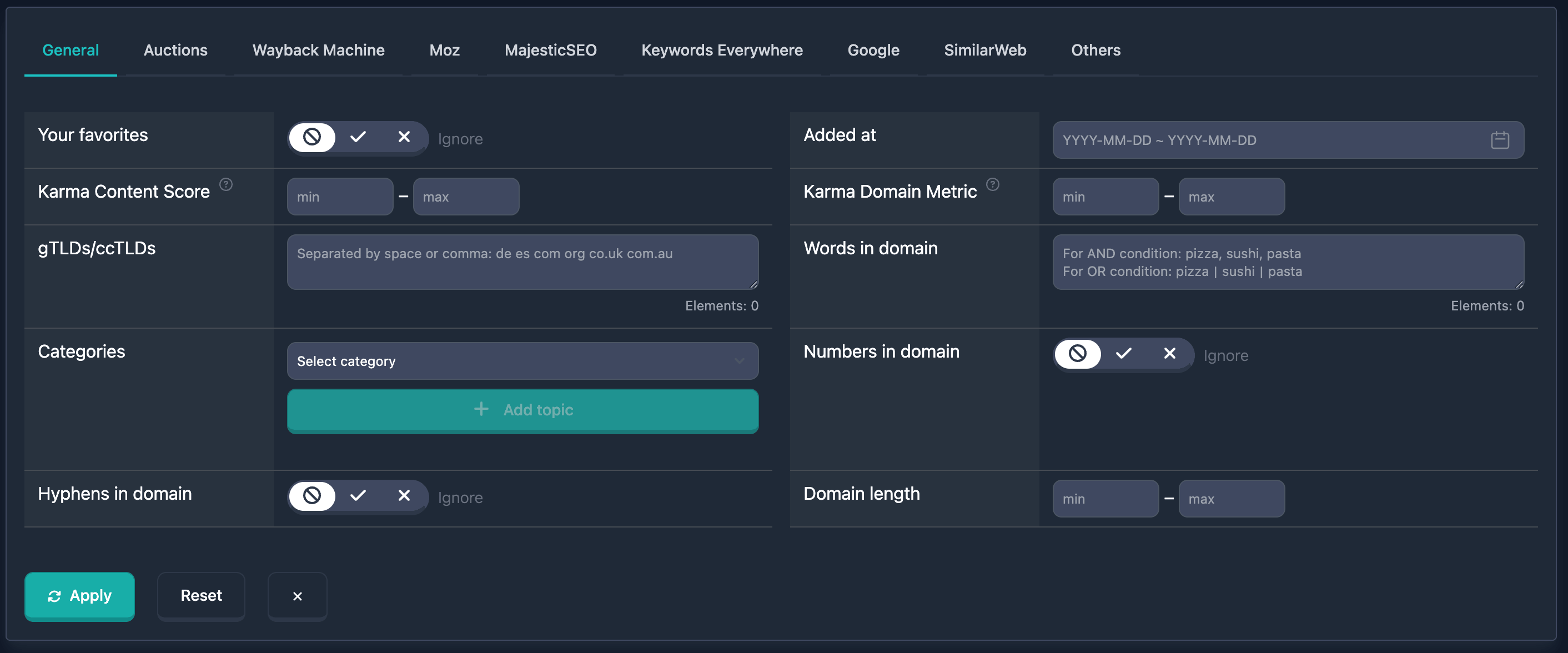
Important: Filters apply only after you click search or apply. Changes in filter fields are not applied automatically.
Domain name, zones, length, digits, hyphens, letter and vowel patterns, name type, industry, name languages, and Brand Score are on the Name tab, not here.
Favorites filter (Your favorites)
The Your favorites filter shows only domains from your favorites or excludes them from results.
See also: How to add a domain to Favorites.
How to use
- Find the Your favorites field in the main filters block
- Use the three-state toggle:
- Unknown (forbidden icon) — filter is ignored; all domains are shown
- Yes (checkmark) — only domains from favorites
- No (cross) — favorite domains are excluded from results
There is also a quick Favorites preset in the dropdown.
Notes
- The filter requires a logged-in user
- If you have no favorite domains, Yes returns no results
Examples
Example 1: Show only favorite domains
- Set the toggle to Yes
Example 2: Exclude favorites from search
- Set the toggle to No
Notes filter (With notes)
The With notes filter selects reports where you added a personal note and/or tags. Available on the Pro plan.
Learn more: Report notes and tags.
How to use
- Find the With notes field in the main filters block
- Use the three-state toggle:
- Unknown — filter is ignored
- Yes — only reports with your notes or tags
- No — exclude annotated reports
Notes
- Requires login and the Pro plan
- Only your annotations in the current account count
Report tags filter (Report tags)
The Report tags filter narrows results by tags you saved in report notes. Available on the Pro plan.
Below the field: "Match all selected tags" — a domain is included only if the report has all selected tags (AND logic).
How to use
- Find Report tags in the main filters block
- Pick one or more tags from the dropdown (built from tags already used in your reports)
- Remove a tag via the badge cross or clear the selection in the list
Notes
- You cannot create a new tag in the filter — add it first in a report note
- Can be combined with With notes and other filters
Examples
Example 1: All domains with tag vip
- In Report tags, select
vip
Example 2: Annotated domains with tags hot and review
- With notes → Yes
- Report tags →
hotandreview
Report added date filter (Added at)
The Added at filter selects domains added to the database in the chosen period.
How to use
- Find the Added at field in the main filters block
- Click the date field — a calendar opens
- Choose start and end dates for the range
- Time of day is filled automatically (start and end of day); you do not need to enter time manually
Notes
- You can set one date (start and end the same) or a range
Examples
Example 1: Domains added in January 2023 — in the calendar pick a range from 01.01.2023 to 31.01.2023.
Example 2: Domains from the last month — set the start date to 30 days ago and the end to “today”.
Karma Content Score filter
Karma Content Score measures content quality based on Wayback Machine data. Values range from 0 to 100.
Read more in the blog: Karma Score: Evaluating a domain’s content history.
How to use
- Find Karma Content Score in the main filters block (a help icon is next to it)
- Enter the minimum in min (0–100)
- Enter the maximum in max (0–100); a dash appears between the fields
- You can fill only min (score not below), only max (not above), or both for a range
Notes
- Only domains with a calculated Karma Content Score are included
Examples
Example 1: High content quality (70–100) — min 70, max 100.
Example 2: Low quality (0–30) — min: 0, max: 30.
Example 3: Score above 50 — min 50, leave max empty.
Karma Domain Metric filter
Karma Domain Metric is a composite quality score using various metrics and Wayback history. Values range from 0 to 100.
Read more in the blog: Karma Domain Metric. To check KDM on specific domains without opening a full report, use the free Domain Authority Checker (up to 10 domains per run, no signup).
How to use
- Find Karma Domain Metric in the main filters block (help icon next to it)
- Enter min and max bounds (0–100)
- You can set only min, only max, or both
Notes
- Only domains with a calculated Karma Domain Metric are included
- Karma Content Score and Karma Domain Metric can be combined
Examples
Example 1: High Karma Domain Metric (80–100) — min: 80, max: 100.
Example 2: Mid range (40–60) — min: 40, max: 60.
Categories filter
Categories filters domains by topical category. You can include categories (show only matching domains), exclude categories (hide matching domains), or combine both. The UI has one category dropdown, Include / Exclude buttons, badge lists, and quick preset links.
How to use
- Find the Categories block in main filters
- Pick a category in the dropdown (“Select category”). A short description appears below the selection
- Click Include (plus icon) to add the category to the Included list, or Exclude (minus icon) to add it to Excluded
- Added categories appear as badges under Included or Excluded; click the cross on a badge to remove one
- Click Clear All (trash icon) to clear both lists (shown when at least one badge is present)
Notes
- Flat category list — no subcategories or
Parent / Childhierarchy - Included list uses OR logic: the domain must match at least one included category (when the list is not empty)
- Excluded list uses OR logic: the domain is removed if it matches at least one excluded category
- When both lists are used: domains must match the include rule and must not match any excluded category
- A category cannot be in both Included and Excluded at the same time
- You can use only Excluded (e.g. “everything except casino”) or only Included
- Category names in the UI are in English (as in the category reference)
Quick presets
Below the buttons you will see dotted underline links. One click adds a preset bundle to the current lists (merged with existing badges, no duplicates):
| Preset | Action | Categories |
|---|---|---|
| No pharma / casino / adult | exclude | Gambling & betting, Adult content (18+), Pseudo-health & miracle cures |
| No toxic niches (incl. crypto) | exclude | High-risk investments (Forex, crypto, HYIP), Illegal or criminal content, Scams & fraud, Hate, violence & extremism, Astrology & Esoteric, Pseudo-health & miracle cures, Cannabis & CBD |
| Add local business | include | Restaurants & Bars, Shopping & Fashion, Home Services, Beauty & Well-being, Home & Garden, Food, Beverages & Tobacco |
Exclude presets (red links) add categories to Excluded. The include preset (primary-colored link) adds categories to Included.
Examples
Example 1: Exclude only — click the No pharma / casino / adult preset. Results hide domains in those categories.
Example 2: Include and exclude — add Sports via Include, add Gambling & betting via Exclude. Results show sports domains without gambling.
Example 3: Local business — click Add local business, then add manual excludes if needed (e.g. No toxic niches preset).
Combining filters
All filters above can be combined. With several filters active, logic is AND — the domain must match all conditions.
Combined example
Goal: Domains added in 2023 with a high Karma Content Score, and only your favorites.
In the UI:
- Your favorites: Yes
- Added at: 01.01.2023–31.12.2023
- Karma Content Score: min 70, max 100
Name conditions — zone, length, digits, hyphens, words — are set on the Name tab and combine with these by AND.
Results include only domains that match all of the above.
Common issues and fixes
No results after applying filters
Why: The combination is too strict — no domain satisfies every filter.
What to do: Relax or disable filters one by one (widen ranges or remove conditions) until results appear.
Date input error
Why: Date was typed manually in the wrong format.
What to do: Use the calendar by clicking Added at — the date is inserted in the correct format.
Tips
-
Start with 1–2 filters: Add conditions gradually so you do not empty the list by accident.
-
Name of the domain: Zone, words, length, digits, hyphens, patterns, and Brand Score are on the Name tab.
-
Check result count: After applying filters, see how many domains matched; relax or tighten as needed.
-
Save useful combinations: Frequently used sets can be saved for quick access and applied in one click.