- General principles of column management
- How to open the column management menu
- Column groups
- Saving settings
- Usage examples
- Troubleshooting
- Tips for column management
General principles of column management
Column management lets you control the visibility of column groups in the search results table for the selected report type. This helps you focus on the data you need and hide extra columns for easier reading.
Important: Column visibility settings are saved automatically in the browser for each report type separately. On your next visit, the settings are restored.
How to open the column management menu
Step 1: Find the control button
- Find the column management button in the table UI (table-with-columns icon)
- It is usually in the top-right corner of the table or next to other controls
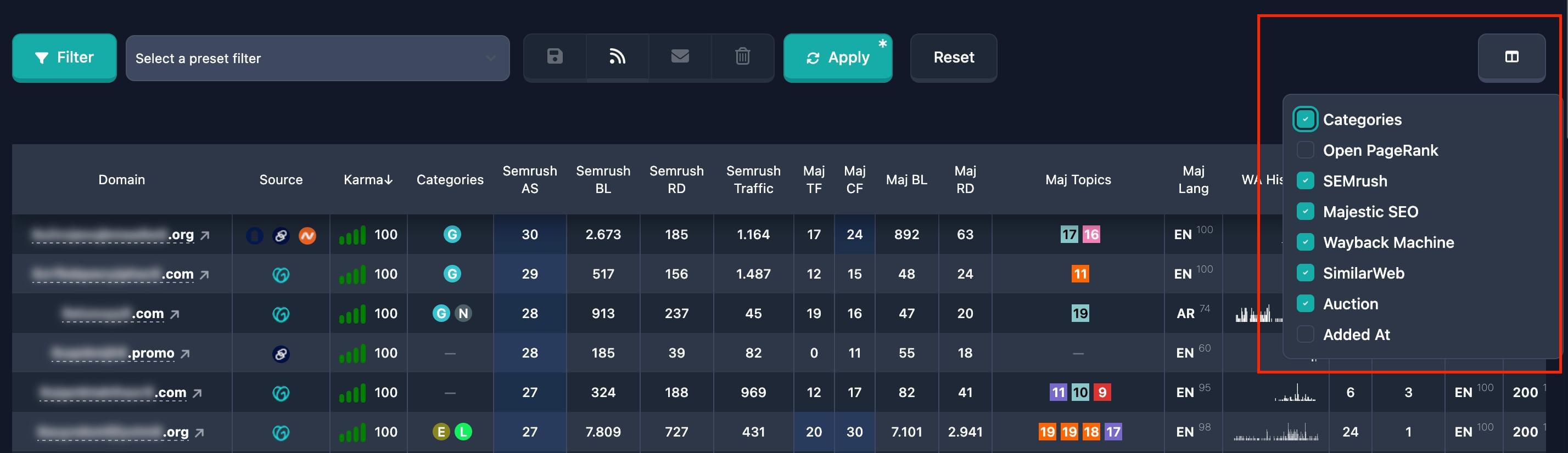
Step 2: Open the menu
- Click the column management button
- A dropdown opens listing column groups
- Each group has a checkbox to control visibility
Note: The menu closes when you click outside it or click the button again.
Column groups
Columns are organised into groups. Turning a group on or off shows or hides all columns in that group.
Names and the set of available columns may change with Karma.Domains updates. Below are the main ones; the behaviour is the same for all.
Categories
Description: Columns related to domain categories. To configure categories, use the main filters.
Columns in the group: Domain categories
Default: On for all report types
How to manage:
- Open the column management menu
- Find the "Categories" group
- Check or uncheck the box to show or hide the group
- Changes apply immediately
Karma Domain Metric
Description: Columns for the Karma Domain Metric. Conditions for this metric are set in the main filters.
Columns in the group: Karma Domain Metric
Default: Off
How to manage:
- Open the column management menu
- Find the "Karma Domain Metric" group
- Check the box to show the metric columns
- Changes apply immediately
Open PageRank
Description: Columns for the Open PageRank metric. To filter by this metric, use the other filters.
Columns in the group: Open PageRank
Default: Off
How to manage:
- Open the column management menu
- Find the "Open PageRank" group
- Check the box to show Open PageRank columns
- Changes apply immediately
Brand Score
Description: Columns for the Brand Score metric. To filter by this metric, use the other filters.
Columns in the group: Brand Score
Default: Off
How to manage:
- Open the column management menu
- Find the "Brand Score" group
- Check the box to show Brand Score columns
- Changes apply immediately
Moz
Description: Columns for Moz metrics. Moz filters are in the dedicated filters section.
Columns in the group: Domain Authority (DA), Spam Score (SS), Backlinks, Referring Domains, Backlink URL, Backlink Anchor
Default: On for most report types
How to manage:
- Open the column management menu
- Find the "Moz" group
- Check or uncheck the box to show or hide the group
- Changes apply immediately
Majestic SEO
Description: Columns for Majestic SEO metrics. To filter by Majestic, use the Majestic filters.
Columns in the group: Trust Flow (TF), Citation Flow (CF), Backlinks, Referring Domains, Language, Topics
Default: On for most report types
How to manage:
- Open the column management menu
- Find the "Majestic SEO" group
- Check or uncheck the box to show or hide the group
- Changes apply immediately
Wayback Machine
Description: Columns for Wayback Machine data. Wayback filters are in the Wayback Machine filters section.
Columns in the group: Changes, Age, First Snap, Last Snap, Keywords, Languages, Server Code Ratio, Hieroglyphs, Redirects, Error 403, Website IDs
Default: On for most report types
How to manage:
- Open the column management menu
- Find the "Wayback Machine" group
- Check or uncheck the box to show or hide the group
- Changes apply immediately
SimilarWeb
Description: Columns for SimilarWeb data. To filter domains by SimilarWeb, use the SimilarWeb filters.
Columns in the group: Visits, Last Traffic Date, Country Share, Traffic Sources (Social, Paid Referrals, Mail, Referrals, Search, Direct)
Default: Off
How to manage:
- Open the column management menu
- Find the "SimilarWeb" group
- Check the box to show SimilarWeb columns
- Changes apply immediately
Auction
Description: Columns for auction data. Auction filters are in the auction filters section.
Columns in the group: Source, Price, Bids, End Time, Added Time
Default: On for auctions and backorder report types
How to manage:
- Open the column management menu
- Find the "Auction" group
- Check or uncheck the box to show or hide the group
- Changes apply immediately
Note: The "Auction" group is only available for report types related to auctions (auctions, backorder).
Added At
Description: Columns for when the domain was added. Date conditions are set in the main filters.
Columns in the group: Date the domain was added to the database
Default: On for all report types
How to manage:
- Open the column management menu
- Find the "Added At" group
- Check or uncheck the box to show or hide the group
- Changes apply immediately
Saving settings
Automatic saving
Column visibility is saved automatically in the browser whenever you change it:
- When you check or uncheck a box, settings save immediately
- Settings are stored separately for each report type
- On your next visit, settings are restored automatically
Important: Settings are stored in the browser’s local storage. If you clear site data or use another browser, settings reset to defaults.
Restoring settings
- When you open a page with a table, settings load automatically
- Column visibility matches your saved preferences
- If nothing was saved before, defaults for that report type apply
Usage examples
Example 1: Show only core metrics
Goal: Show only Categories, Moz, and Majestic SEO columns; hide other groups.
Steps:
- Open the column management menu
- Leave only these groups enabled:
- Uncheck all other groups
- Changes apply immediately
Result: The table shows only columns from those groups.
Example 2: Add SimilarWeb metrics
Goal: Add SimilarWeb columns for traffic analysis.
Steps:
- Open the column management menu
- Find the "SimilarWeb" group
- Check the "SimilarWeb" box
- Changes apply immediately
Result: The table includes SimilarWeb columns (Visits, Traffic Sources, etc.).
Example 3: Hide auction columns
Goal: Hide auction-related columns when working with expired domains.
Steps:
- Open the column management menu
- Find the "Auction" group
- Uncheck "Auction"
- Changes apply immediately
Result: Auction-related columns are hidden.
Troubleshooting
The column menu does not open
Possible causes:
- Component failed to load
- Conflict with other UI elements
- JavaScript issues
What to try:
- Refresh the page (F5 or Ctrl+R)
- Clear the browser cache
- Ensure JavaScript is enabled
- Try another browser
Settings are not saved
Possible causes:
- Local storage disabled
- Private browsing (in some browsers)
- Permission issues
What to try:
- Check browser settings for local storage
- Exit private browsing mode
- Ensure the browser supports localStorage
- Try another browser
Settings are not restored
Possible causes:
- Data was cleared
- Issue loading from localStorage
- Report type changed
What to try:
- Configure columns again — they will save for the current report type
- Make sure you are on the same report type you configured
- Check that site data was not cleared in the browser
Columns do not hide or show
Possible causes:
- Change not applied
- Table did not refresh
- Conflict with other settings
What to try:
- Confirm you checked or unchecked the box
- Refresh the page
- Close and reopen the column menu
- Confirm the checkbox stayed in the right state
Tips for column management
-
Use column groups to show or hide related columns quickly.
-
Tune for the task — enable only the groups you need right now.
-
Trust auto-save — but confirm the table updated after changes.
-
Different report types — settings are separate per type so you can optimise each section.
-
Try combinations — experiment to find the layout that works best.
-
Hide unused groups for a more compact table.
-
Defaults are a starting point — the app suggests sensible defaults per report type.
-
If reset — configure columns again; they will save for that report type.