- How auction filters work
- Auction source filter (Auction)
- Price filter (Price)
- Bid count filter (Bid count)
- End time filter (Ends)
- Added time filter (Added)
- Filters by report type
- Combining auction filters
- Troubleshooting
- Tips
How auction filters work
Auction filters help you find domains listed for sale on various auction platforms. Depending on the report type (auctions, backorder, expired), filters behave differently.
Important: For report types auctions and backorder, all filters automatically show only active auctions (end time has not passed yet). For other report types (expired), filters apply to all auctions, including completed ones.
Auction source filter (Auction)
The Auction filter finds domains by the platform where they are listed. You can select multiple sources at once in the UI.
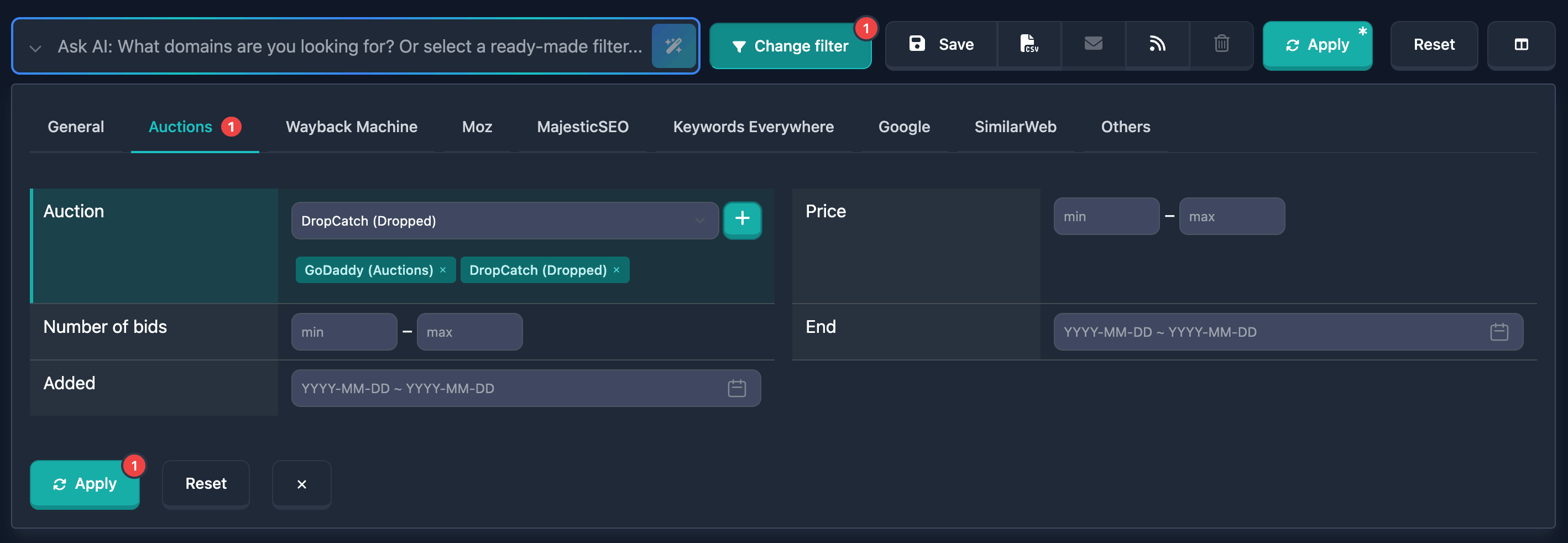
How to use
- Find the Auction field in the filters section
- In the dropdown, pick a platform (auction source names are listed)
- Click the
+button to the right of the list to add the source to the filter - Added sources appear as badges under the selector
- To remove a source, click the X on the badge
- You can add several sources — results include domains from any selected source
Notes
- Each platform in the dropdown may have subtypes (e.g. auctions and closeouts); pick the row you need.
- For Expired, the same list also offers Wayback Machine and Public Databases.
Dropdown options
The auction list keeps growing. Below are those current at the time this article was written.
- GoDaddy (Auctions) — GoDaddy auctions
- GoDaddy (Closeouts) — GoDaddy closeouts
- DropCatch (Pre-Release) — pre-release
- DropCatch (Dropped) — dropped domains
- DropCatch (Private Seller) — private sellers
- Namecheap Auctions
- Namejet/Snapnames Auctions
- Sav.com (Dropped) — dropped
- Sav.com (Customer) — customer listings
- Sav.com (Expired) — expired
- Dynadot (Auctions) — Dynadot auctions
- Dynadot (Closeout) — Dynadot closeouts
- Namesilo Auctions
- Park.io Auctions
- Sedo Expiring Domains
- GNAME Auctions
Examples
Example 1: Domains on GoDaddy auctions
In the dropdown choose GoDaddy (Auctions), press +. Results show domains from that GoDaddy auction type.
Example 2: Domains in closeout auctions
Add GoDaddy (Closeouts) and Dynadot (Closeout) (select each, then +). Results include domains from either source.
Example 3: Domains from several platforms
Add in turn: GoDaddy (Auctions), Namecheap Auctions, Namejet/Snapnames Auctions. Results show domains from any of these sources.
Price filter (Price)
The Price filter searches by the current auction price. The UI uses two fields for a range.
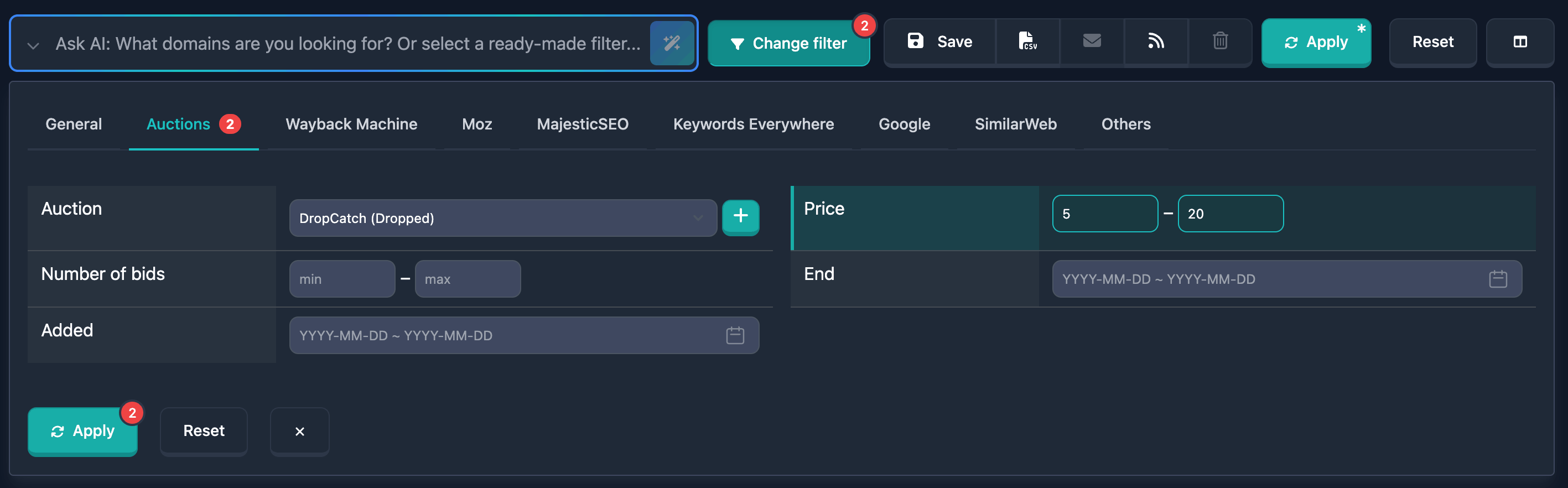
How to use
- Find the Price field in the filters section
- Enter the minimum price in the min field (left)
- Enter the maximum price in the max field (right); a dash appears between the fields
- You can fill only min (domains above that price), only max (cheaper than that), or both for a full range
Notes
- In Auctions, only active auctions with a matching price remain in results
- For other report types, all auctions count, including completed
- Platform prices can change; the filter sets a range in USD or EUR depending on the platform
Examples
Example 1: Expensive domains (from 1000 USD)
Enter 1000 in min, leave max empty. Result: domains priced from 1000 USD upward.
Example 2: Mid range (100–500 USD)
min: 100, max: 500. Result: domains from 100 to 500 USD inclusive.
Example 3: Cheap domains (up to 50 USD)
Leave min empty, enter 50 in max. Result: domains up to 50 USD.
Bid count filter (Bid count)
The Bid count filter searches by how many bids were placed — useful for more or less popular lots.
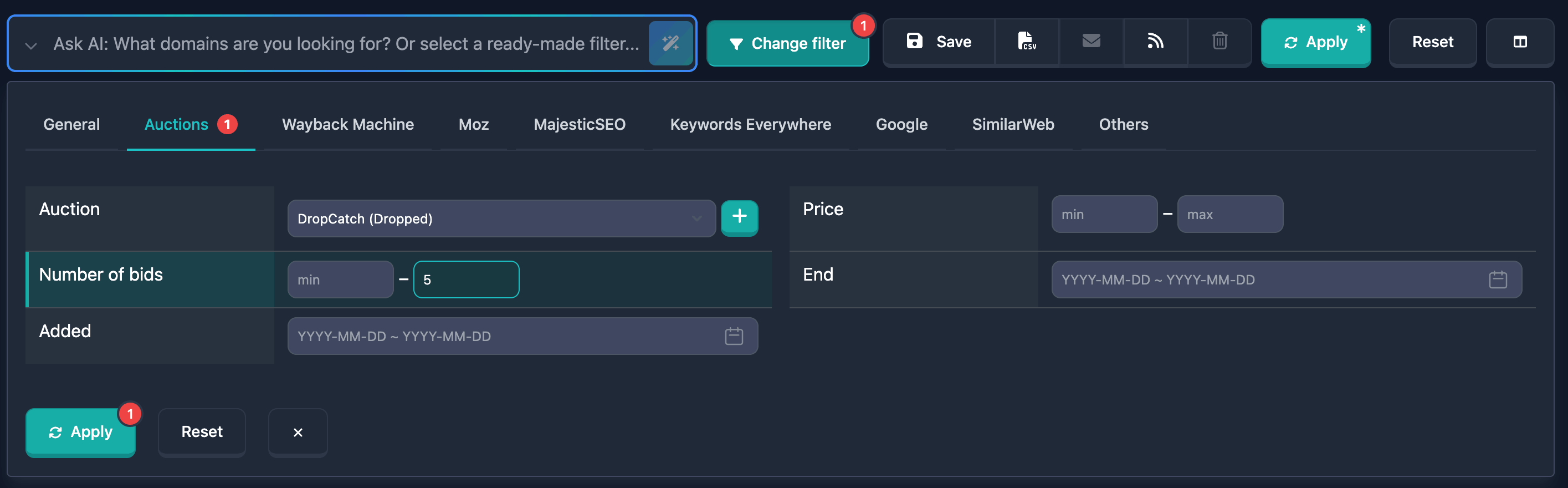
How to use
- Find Bid count in the filters section
- In min, enter the minimum number of bids
- In max, enter the maximum number of bids (dash between fields)
- You can use only min, only max, or both for a range
Notes
- In Auctions, only active auctions with the specified bid count appear
- For other report types, all auctions are considered
- Bid counts can change on the platform; domains with no bids count as 0
Examples
Example 1: Many bids (from 20)
Enter 20 in min, leave max empty. Result: domains with 20 or more bids.
Example 2: Moderate activity (5–15 bids)
min: 5, max: 15. Result: domains with 5 to 15 bids inclusive.
Example 3: Almost no bids
min: 0, max: 1. Result: domains with 0 or 1 bid.
End time filter (Ends)
The Ends filter finds domains whose auction ends in a chosen period. This field has quick period buttons in the UI.
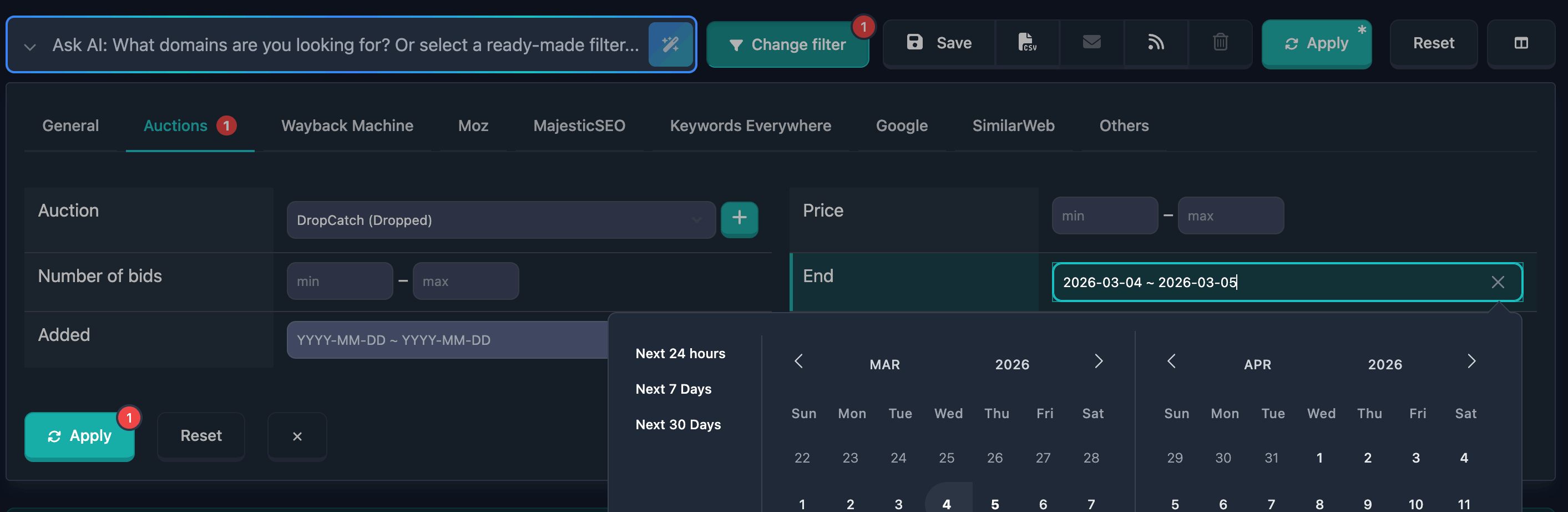
How to use
- Find Ends in the filters section
- Click the date field to open the calendar date picker
- Pick start and end dates for the range
Or use a quick button (only on this filter):- Next 24 hours — next 24 hours
- Next 7 Days — next 7 days
- Next 30 Days — next 30 days
- Time of day is filled automatically (start of day for the first date, end of day for the second); you do not enter time manually
Notes
- In Auctions, only active auctions whose end falls in the range appear
- For other report types, all auctions are included, including already finished
- Quick period buttons appear only on the Ends filter
Examples
Example 1: Auctions ending in the next 24 hours
Click Next 24 hours. Results: active auctions ending within the next 24 hours.
Example 2: Ending in January 2024
Open the calendar and set start 01.01.2024 and end 31.01.2024. Result: auctions ending in that range.
Example 3: Ending in the next 7 days
Click Next 7 Days. Result: active auctions ending within seven days.
Added time filter (Added)
The Added filter finds domains that entered the database in a chosen period — handy for new inventory.
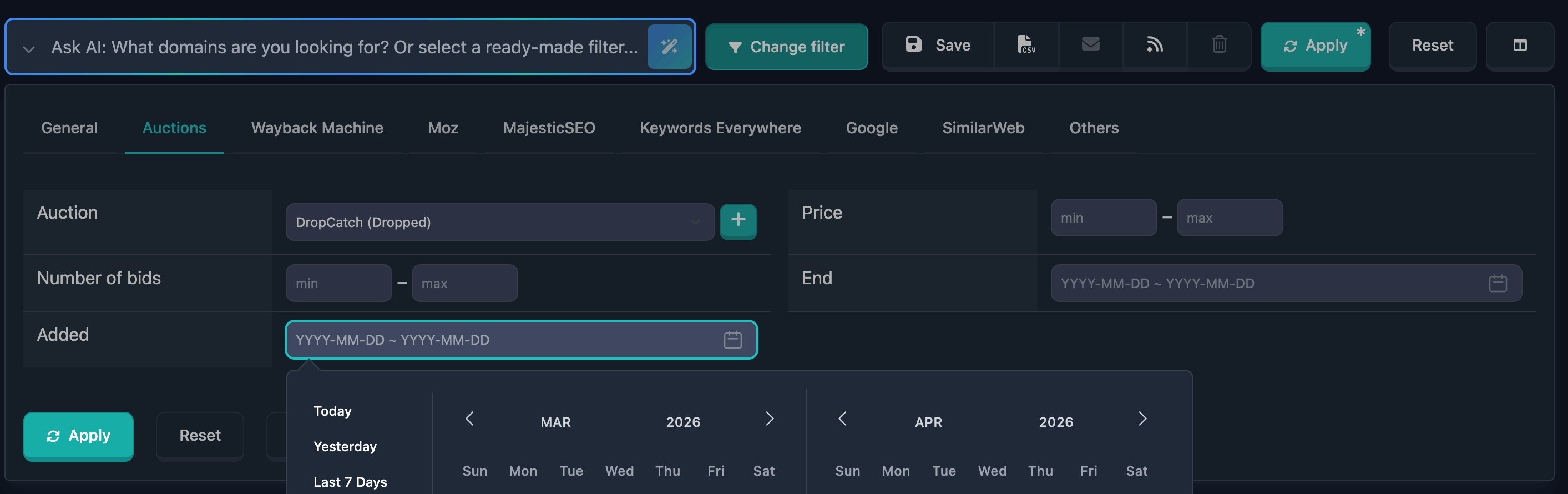
How to use
- Find Added in the filters section
- Click the date field to open the calendar
- Choose the start and end dates of the range
- Time of day is applied automatically (start and end of day); no manual time entry
Notes
- In Auctions, only domains with active auctions that were added in the period appear
- For other report types, all domains added in the period appear, whether the auction is still active or finished
Examples
Example 1: Domains added today
Pick the same date as both start and end. Result: domains added that day.
Example 2: Added in the last week
Set range from seven days ago to today. Result: domains added in that week.
Example 3: Added in a specific month
e.g. 01.01.2024–31.01.2024. Result: domains added in January 2024.
Filters by report type
Auctions section
In Auctions, filters default to active auctions only (end time not yet reached).
- Auction (source) — active auctions from selected platforms only
- Price — active only, matching price
- Bid count — active only, matching bid count
- Ends — active only, end in selected range
- Added — domains with active auctions added in the selected period
Expired section
Here filters consider all auctions, including completed — some domains land here after going unsold at auction.
- You can search historical data too
- In Expired, the UI only exposes the Source filter (same platform dropdown plus Wayback Machine and Public Databases)
Combining auction filters
All auction filters can be combined. With several filters active, logic is AND — the domain must satisfy every condition.
Combination example
Goal: Active GoDaddy auctions priced 100–500 USD, at least 5 bids, ending in the next 7 days.
In the UI:
- Auction: add GoDaddy (Auctions) (pick from list +
+) - Price: min 100, max 500
- Bid count: min 5
- Ends: click Next 7 Days
Results include only active auctions that meet all of the above.
Troubleshooting
No results in Auctions
Why: Auctions shows only active auctions. If no active lot matches your filters, the list is empty.
What to do: Widen price or date ranges, lower minimum bid count, or remove some sources.
Date entry error
Why: A date was typed manually in the wrong format.
What to do: Use the calendar (click the date field) so the correct format is applied automatically.
Source missing from list
Why: The dropdown only shows platforms and types supported in the current section.
What to do: Pick another listed source, or remove extra badges and choose again from the dropdown.
Tips
-
Quick end buttons: On Ends, use Next 24 hours, Next 7 Days, Next 30 Days to quickly target soon-ending auctions.
-
Combine filters: Multiple filters use AND — every selected condition must match.
-
Mind the section: Auctions = active only; Expired = all, including finished.
-
New stock: Added helps surface domains recently added to the database.
-
Bid count: High bids often mean interest — and strong competition.
Documentation reflects the last update. Filter capabilities may expand in future versions.