- How Keywords Everywhere filters work
- Estimated Traffic Value (ETV) filter
- Total Keywords filter
- Keyword filter
- Open PageRank filter
- Combining Keywords Everywhere filters
- Common issues and fixes
- Tips
How Keywords Everywhere filters work
Keywords Everywhere filters search domains using data from Keywords Everywhere: estimated traffic value (ETV), total number of keywords, and specific keywords the domain ranks for. Open PageRank is on the same tab. It used to sit in Other filters.
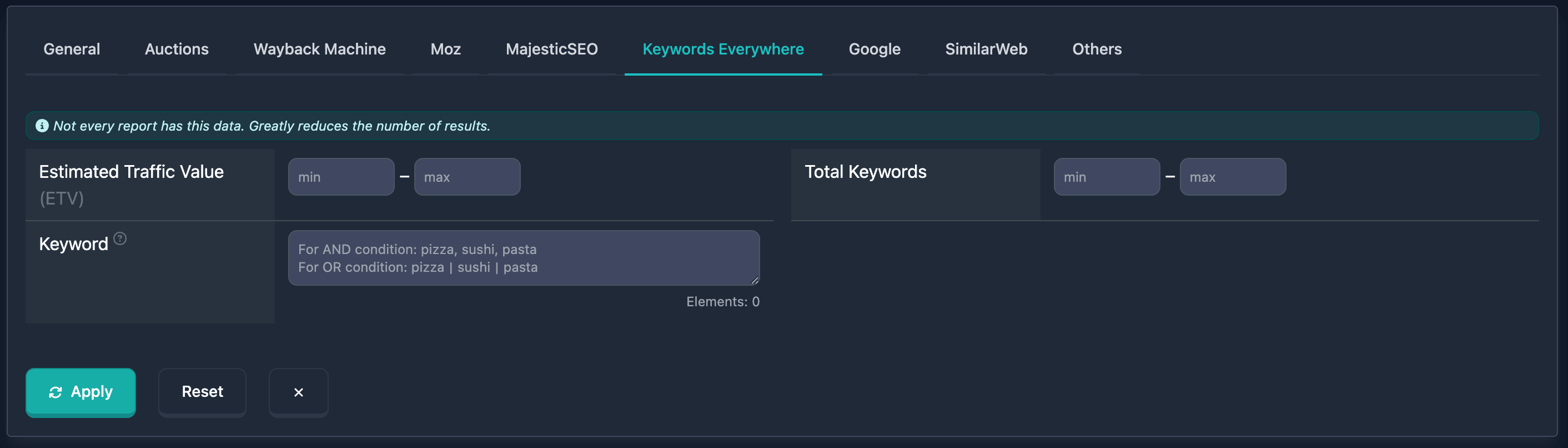
Important: At the top of the Keywords Everywhere block there is a note: “Not every report has this data. Strongly reduces the number of results.” — keep that in mind.
Estimated Traffic Value (ETV) filter
Estimated Traffic Value (ETV) is a Keywords Everywhere metric: estimated value of traffic the domain may get from keywords it ranks for. Entered in USD in the UI.
How to use
- Find Estimated Traffic Value (ETV) in the Keywords Everywhere block
- min — minimum value (USD)
- max — maximum; dash between fields
- Only min, only max, or both for a range
Notes
- ETV is based on Keywords Everywhere data; high ETV often indicates commercially valuable keywords
- Values are 0 or higher
Examples
Example 1: High ETV (from 1000 USD) — min 1000, leave max empty.
Example 2: Moderate ETV (100–500 USD) — min: 100, max: 500.
Example 3: Low ETV (up to 50 USD) — leave min empty, max 50.
Total Keywords filter
Total Keywords selects domains by how many keywords they rank for according to Keywords Everywhere.
How to use
- Find Total Keywords in the Keywords Everywhere block
- min — minimum keyword count
- max — maximum (dash between fields)
- Only min, only max, or both
Notes
- Shows how many keywords the domain ranks for; a large number may indicate broad topical coverage
- Values are 0 or higher
Examples
Example 1: Many keywords (from 1000) — min 1000, max empty.
Example 2: Moderate (100–500) — min: 100, max: 500.
Example 3: Few (up to 50) — min empty, max: 50.
Keyword filter
Keyword finds domains by keywords they rank for per Keywords Everywhere. One text field with logic hints and an element counter.
How to use
- Find Keyword in the Keywords Everywhere block
- Enter keywords or phrases
- Separators:
- Comma (
,) — AND: the domain must rank for all listed keywords - Pipe
|— OR: any keyword is enough
- Comma (
- Elements counter at the bottom right (max 20). Over the limit shows Maximum … elements allowed
Placeholder: “For AND: pizza, sushi, pasta. For OR: pizza|sushi|pasta”.
Notes
- Full phrases or fragments; case does not matter
- Only keywords from the TOP 3 results count (see the field hint)
Examples
Example 1: Any keyword (OR) — shop | store | buy. Domains ranking for any of these.
Example 2: All keywords (AND) — tech, news. Domains ranking for both.
Example 3: One phrase — e.g. best domain names. Domains ranking for that phrase or part of it.
Open PageRank filter
Open PageRank is an open metric based on the classic PageRank algorithm: domain authority from backlinks. It used to be on the Other filters tab. The field label links to a description of the metric.
How to use
- Find Open PageRank in the Keywords Everywhere block
- Enter min and max on a scale up to 10
- min only, max only, or both
Notes
- High Open PageRank (7+) usually indicates very authoritative domains; mid (3–6) moderate authority; low (0–2) new or weak domains
- Not every report has this value. A minimum above 0 drops domains where it was not calculated
Examples
Example 1: High authority (7–10) — min: 7, max: 10.
Example 2: From 8 upward — min: 8, leave max empty.
Combining Keywords Everywhere filters
All Keywords Everywhere filters can be combined with other filters for finer search. Multiple filters use AND — the domain must match all conditions. You can save combinations.
Combined example
Goal: ETV from 500 USD, at least 500 keywords, and ranking for “domain”.
In the UI:
- Estimated Traffic Value (ETV): min 500
- Total Keywords: min 500
- Keyword:
domain
Results must satisfy all of the above.
Common issues and fixes
“Maximum … elements allowed”
Why: More than 20 keywords or phrases in Keyword. The Elements counter and red warning appear when over the limit.
What to do: Remove entries until the counter is 20 or below.
No results after applying filters
Why: Conditions are too strict, or Keywords Everywhere data is missing for many domains (see the note at the top).
What to do: Relax filters (widen ETV/Total Keywords ranges, fewer keywords in Keyword) until results appear. Use other filters if needed.
Few results because of Keywords Everywhere data
Why: Not every domain has Keywords Everywhere data — filters only apply where data exists.
What to do: Read the message at the top (“Not every report has this data…”). For other domains, rely on the rest of the search filters.
Tips
-
Combine ETV and Total Keywords: High ETV and many keywords help surface commercially interesting domains.
-
Keyword for niches: Enter queries from your niche — results show domains ranking for them.
-
Keyword logic: Comma = all required (AND); pipe
|= any (OR). The placeholder repeats this. -
Watch Elements: Keyword allows up to 20 elements; over the limit triggers a warning.
-
Data availability: The block warns that not every report has Keywords Everywhere data, which reduces results.
-
ETV as a signal: High ETV often indicates commercially valuable keywords.
Documentation is current as of the last update. Filter functionality may expand in future versions.