- Why use the combined SEO filter
- How fields work: numbers and checkboxes
- Domain Authority (DR / DA / TF / OPR)
- Backlinks
- Referring Domains
- Traffic (Visits)
- Text fields: Keywords, Backlink URL, Anchors
- Relation to separate Ahrefs, Moz, etc. filters
- Combining with other report filters
- What can go wrong
- Short reminders
Why use the combined SEO filter
The combined SEO filter lets you define one condition per row and choose which services (data providers) must satisfy it. Within a single metric, checked providers are combined with OR: a domain matches if at least one selected source has a value in the range (or matches the text rule).
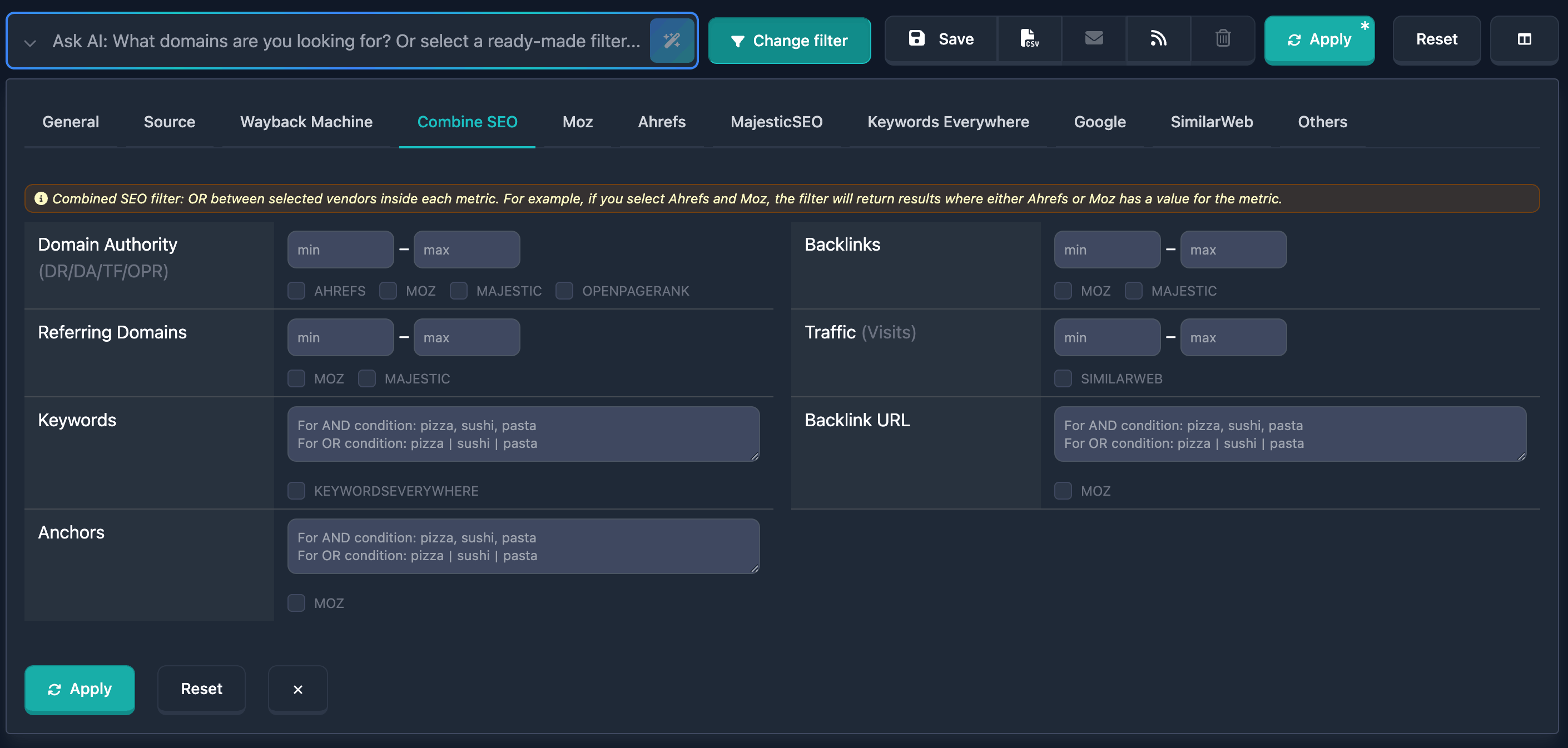
It helps SEO workflows when you do not want to miss domains because of data gaps: some objects have Ahrefs, some Moz or Majestic, and you need candidates where at least one recognizable authority, link, or traffic signal falls in the right band.
It also speeds up setups for PBNs, link campaigns, or domain buying: one row instead of several blocks with strict AND per service. Combining text conditions (keywords, link URLs, anchors) with numeric rows narrows results by semantics and link profile without jumping between many separate filters.
At the top of the block a warning is shown (yellow banner):
Combined SEO filter: OR between selected providers within each metric. For example, if you choose Ahrefs and Moz, the filter returns results where either Ahrefs or Moz has the metric value in range.
Between different rows of the combined block, conditions are usually all required (logical AND): if several fields are enabled, the domain must match authority (if set), links (if set), and so on.
How fields work: numbers and checkboxes
Each numeric metric has:
- min and max fields with placeholder hints (range from 0; for Domain Authority the UI upper bound does not exceed 100).
- A set of checkboxes labeled with provider names (Ahrefs, Moz, Majestic, etc.) — in the UI labels are often uppercase (AHREFS, MOZ, etc.).
Checkboxes stay disabled until you enter at least min or max (or fill the text field on text rows). Hovering a disabled checkbox shows the same hint as the empty text field (about AND and OR for comma- and pipe-separated lists).
By default, all available providers for that row are treated as selected. You can clear extra boxes to search only certain sources. If you clear every box, the set usually resets to “all providers for this row” so the condition does not become empty.
Domain Authority (DR / DA / TF / OPR)
The Domain Authority row labeled (DR/DA/TF/OPR) sets one numeric range for “authority,” while each provider compares its own metric:
- Ahrefs — Domain Rating (DR)
- Moz — Domain Authority (DA)
- Majestic — Trust Flow (TF)
- Open PageRank — OPR
All are configured with one min–max range in the UI (for this row max is not above 100). A domain matches this row if at least one checked provider has its value inside the range.
Examples
Example 1: You want domains where either Ahrefs DR or Moz DA is in 30–60 — set min 30, max 60, leave AHREFS and MOZ checked, clear MAJESTIC and OPENPAGERANK if you do not need them.
Example 2: Broad “strong authority” pick — min 50, max 100 and all four providers: results include domains where at least one of the four metrics falls in the range.
Backlinks
The Backlinks row sets a range on backlink count. Providers are Moz and Majestic (each counts differently; in the combined filter you choose which sources to check with OR).
Example: From 10,000 links — min 10000, max empty; MOZ and MAJESTIC on — a domain matches if either Moz or Majestic reports a value in that range.
Referring Domains
The Referring Domains row sets a range on referring domain count. Providers are again Moz and Majestic, with the same OR logic as Backlinks.
Traffic (Visits)
The Traffic row labeled (Visits) sets a range on visits from SimilarWeb. For this metric the UI has a single provider — SIMILARWEB (one checkbox).
Text fields: Keywords, Backlink URL, Anchors
After the numeric blocks there are three multiline fields. While a field is empty, provider checkboxes stay disabled. After you enter text, you can mark which provider should enforce the rule (again OR among multiple checked providers).
Keywords
The Keywords field searches keyword data from Keywords Everywhere. Input syntax matches other text SEO filters in the service:
- Comma — AND (all parts must match)
- Pipe — OR (the placeholder hint may use a special pipe character; follow the in-field hint)
The placeholder repeats the rules for examples like pizza, sushi, pasta and the OR variant.
Backlink URL
Backlink URL filters by URLs of pages that link to the domain; this row uses Moz. AND / OR rules follow the placeholder hint.
Anchors
Anchors filters anchor text from Moz. Separators are the same as for Backlink URL and Keywords.
For field semantics, see the help sections for Moz and Keywords Everywhere when you need standalone filters without combining.
Relation to separate Ahrefs, Moz, etc. filters
The combined block does not replace individual Ahrefs, Moz, Majestic, etc. filters. Use it when you want one threshold and flexible sources with OR inside the row. When you need strictly Ahrefs DR only — the separate Ahrefs filter in the report panel is a better fit.
Combining with other report filters
Combined SEO conditions work together with the other search filters. Good parameter sets are worth saving as a preset.
What can go wrong
Checkboxes grayed out, cannot click
Why: No value is set for the row — for numbers you must enter min or max (or both); for text, enter text in the field.
What to do: Fill the range or text, then check the providers you need.
Too few or no results
Why: Range too narrow; many rows enabled at once (AND between them); not every domain has data for the provider you selected.
What to do: Widen min/max, temporarily disable one row, clear extra provider boxes, or relax other report filters.
Expected “Ahrefs AND Moz both,” but logic is different
Why: Within one row, design is OR among selected providers (see the yellow banner).
What to do: To require both, use separate filter areas — e.g. standalone Ahrefs and Moz blocks — or only use combined rows where OR fits your intent.
Confusion mixing DR, DA, TF, OPR scales in one row
Why: DR, DA, TF, and OPR are different metrics but share one range for a softer, unified screen.
What to do: For strict interpretation of a single metric, use that service’s dedicated filter or leave only one provider checked.
Short reminders
- Enter numbers or text first, then tune providers with checkboxes.
- Remember OR inside a row and AND across enabled rows.
- For text fields, use comma and pipe as described in the placeholder.
- If results are empty, relax filters step by step and see which row tightens the most.