- How email subscription works
- How to subscribe to email updates
- How to unsubscribe
- Email subscription behavior
- Email notification format
- Use cases
- Managing subscriptions
- Troubleshooting
- Tips
How email subscription works
Email subscription lets you automatically receive email notifications about new domains that match your saved filters. This helps you track new domains without checking results manually.
Important: Email subscription is available only for saved user filters. Preset filters and unsaved custom filters do not support email subscription.
Another quick way to manage all subscriptions is in the Profile section.
How to subscribe to email updates
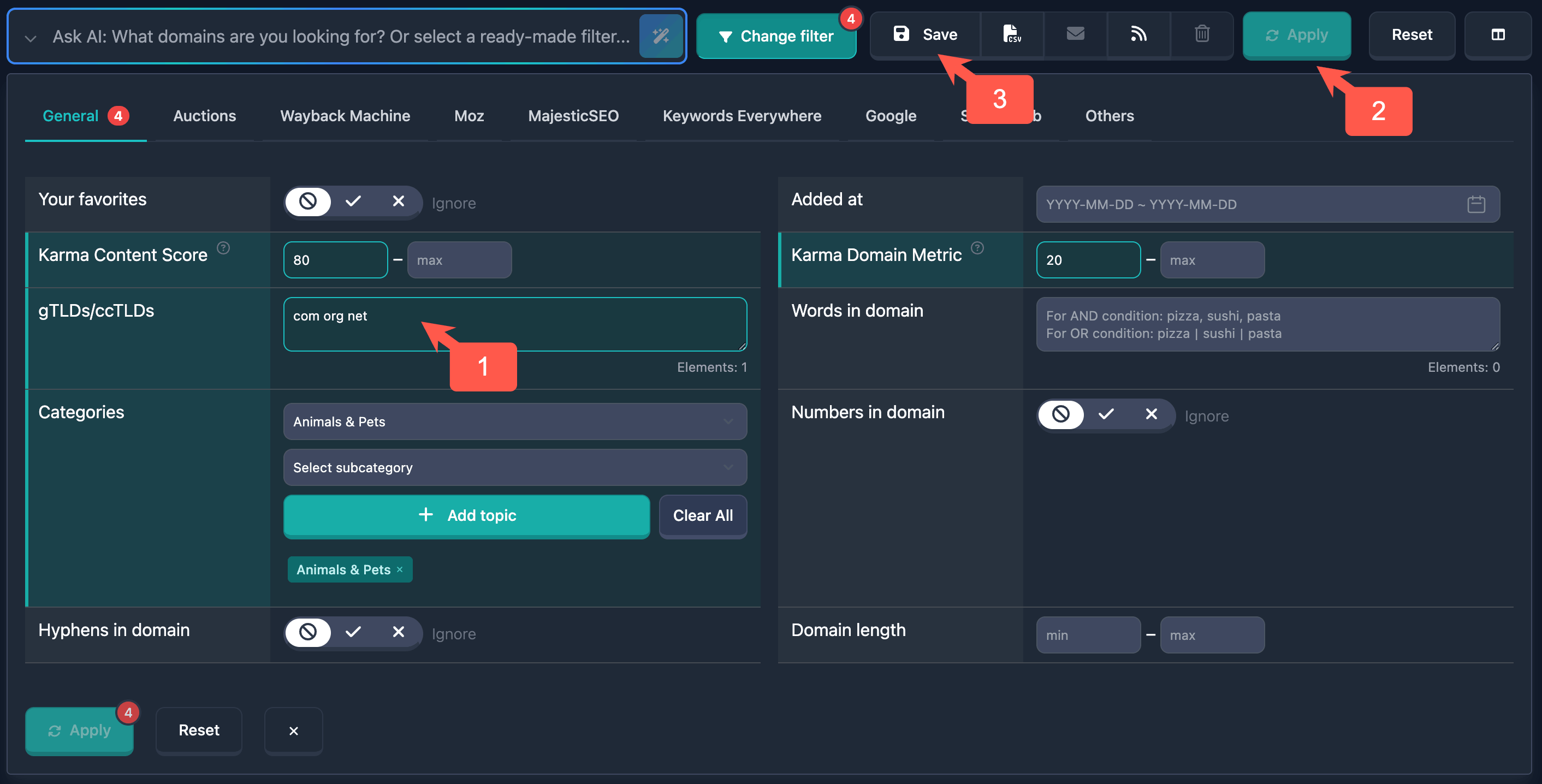
Step 1: Save the filter
- Configure the filters you need for domain search
- Click Apply to apply the filters
- Click Save Filter (floppy disk icon)
- Enter a filter name and click Save
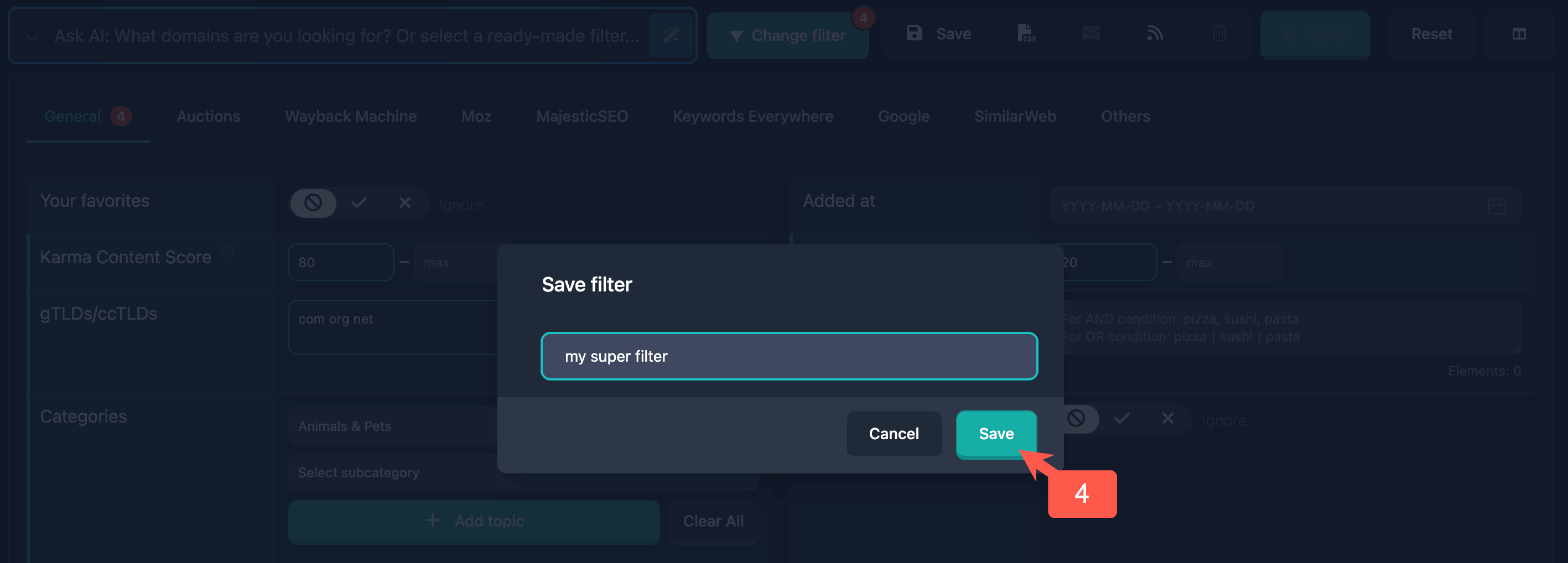
Note: The filter must be saved before you can subscribe to it.
Step 2: Select the saved filter
- Choose the saved filter from the filters dropdown (saved filters appear at the top under “My filters”)
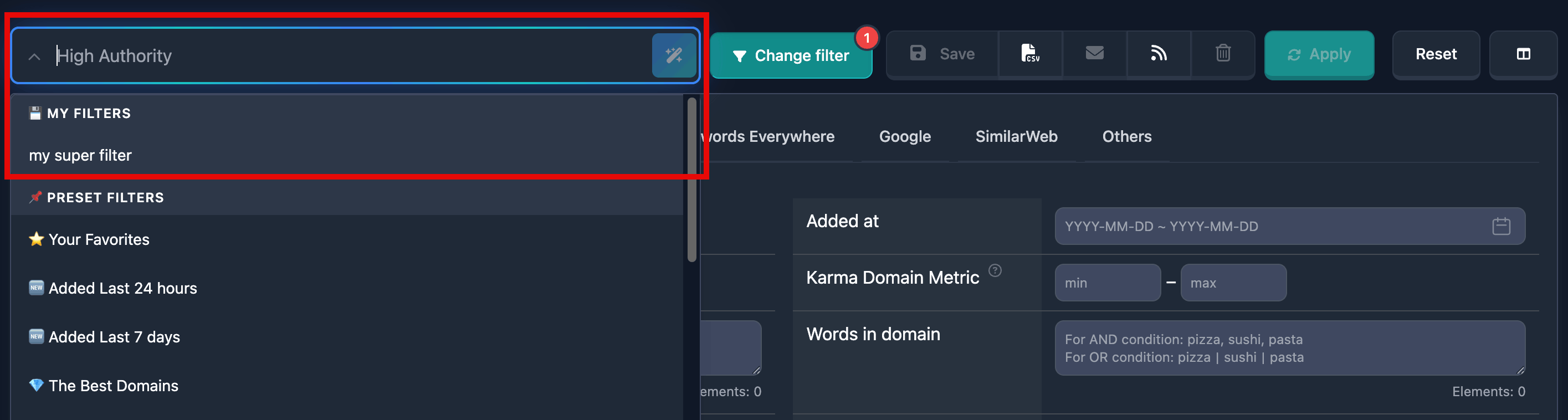
- Make sure the filter is applied and visible in the UI
Important: The email subscription button is available only when a saved user filter is selected (not a preset and not “custom”).
Step 3: Subscribe
- Make sure the filter is applied and visible in the UI
- Find the email subscription control (envelope icon)
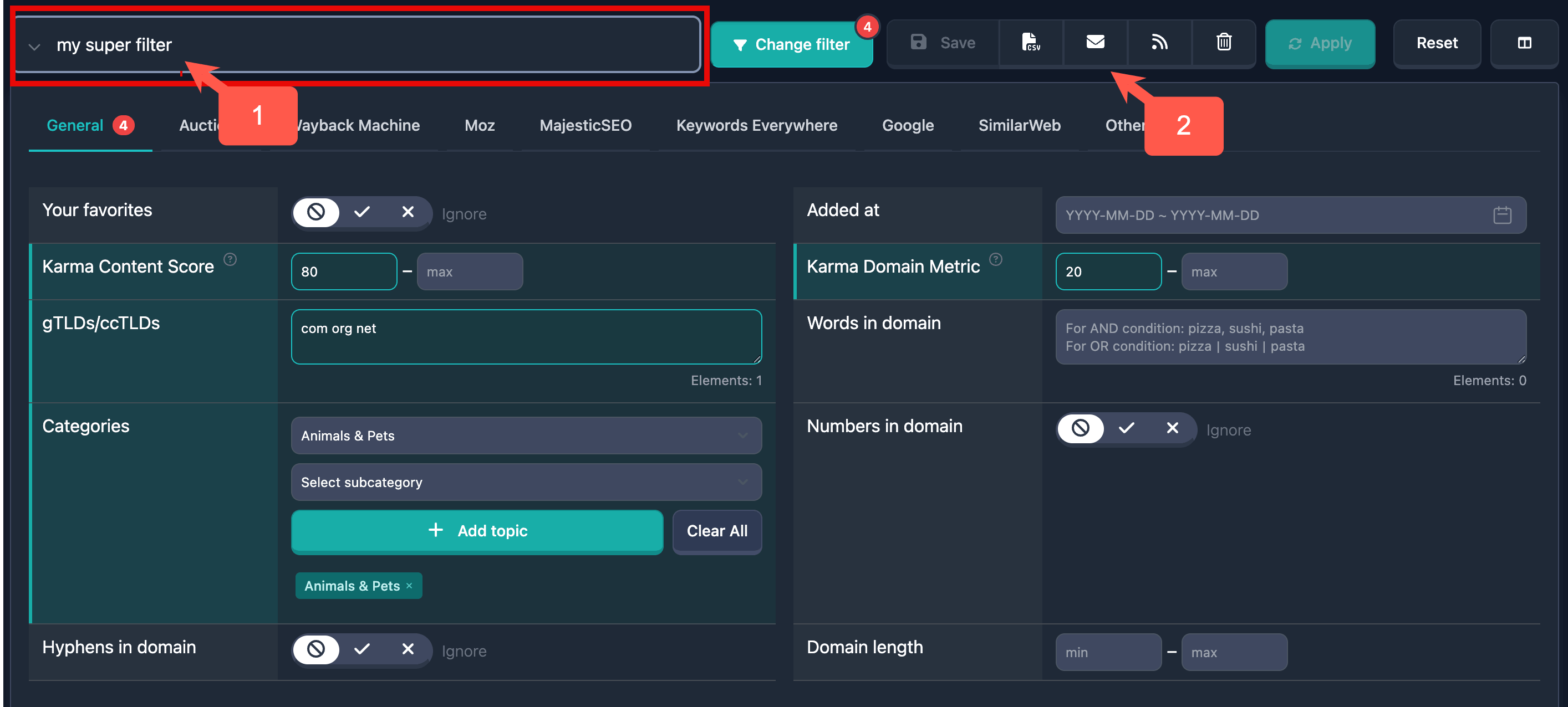
-
Click it — a confirmation dialog opens
-
Confirm by clicking Subscribe
-
Wait for the success message
Note: Subscription is tied to a specific report type (auctions, backorder, expired). You can subscribe to different report types for the same filter.
How to unsubscribe
Step 1: Select a subscribed filter
- Select the saved filter you are subscribed to
- Look for the subscription indicator (checkmark on the envelope icon)
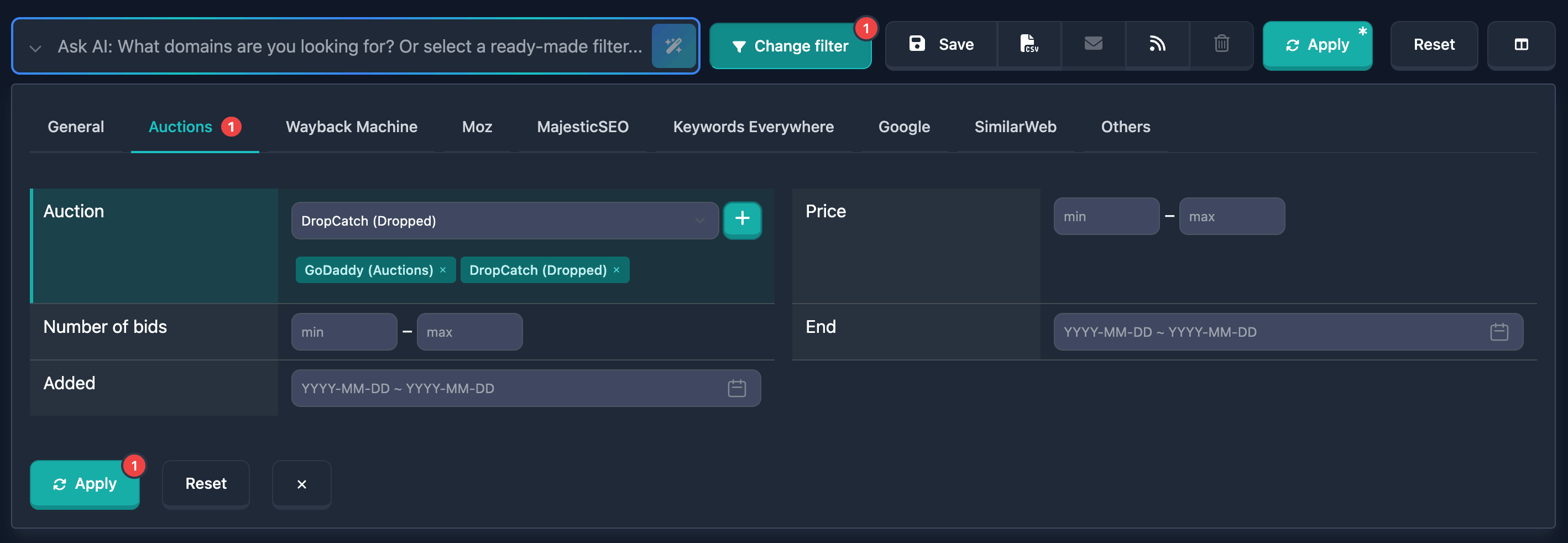
Step 2: Unsubscribe
- Find the email subscription button (envelope with checkmark)
- Click it — a confirmation dialog opens
- Confirm unsubscribe with Unsubscribe (or equivalent)
- Wait for the success message
Note: Unsubscribe is also tied to a specific report type. You can unsubscribe from one report type while staying subscribed to others.
Another quick way to manage all subscriptions is in the Profile section.
Email subscription behavior
Tied to report type
Email subscription works separately for each report type:
- Auctions — new domains in the auctions section
- Expired — new domains in the expired section
- Backorder — new domains in the backorder section
Important: One filter can have subscriptions to several report types at once. Each subscription is managed independently.
Another quick way to manage all subscriptions is in the Profile section. There you can choose sections where the subscription for a given filter applies.
Visual indicators
- Inactive subscription: Envelope icon only
- Active subscription: Envelope with checkmark and highlight
Limitations
- Email subscription is available only for saved user filters
- Preset filters do not support email subscription
- Unsaved custom filters do not support email subscription
- The subscribe button is inactive for presets and unsaved filters
Email notification format
What emails contain
Emails include:
- A list of new domains matching the filter
- Basic information for each domain (name, TLD, date added)
- Metrics (Karma Score, Karma Metric, etc.)
- Links to detailed domain information
Send frequency
- Notifications are sent once per day at the start of the day in your time zone
- The message lists new domains added to the service in the last 24 hours
- If no new domains matched the filter in that period, no email is sent
Note: Exact timing may vary depending on system load and the number of new domains.
Use cases
Example 1: High Karma Score domains
Goal: Get emails about new domains with Karma Score from 70 in Auctions.
Steps:
- Apply filter: Karma Score min: 70
- Click Apply
- Save the filter as “High Karma Score Domains”
- Select the saved filter
- Click the email subscription button
- Confirm subscription
Result: You receive emails about all new domains with Karma Score ≥ 70 in Auctions.
Example 2: Category-specific expired domains
Goal: Emails about new domains in category “Technology” in Expired.
Steps:
- Open Expired
- Apply filter: Category = “Technology”
- Click Apply
- Save as “Technology Expired Domains”
- Select the saved filter
- Click the email subscription button
- Confirm subscription
Result: You receive emails about new Technology domains in Expired.
Example 3: Multiple report types
Goal: Emails about new domains with certain traits in both Auctions and Backorder.
Steps:
- Create and save a filter with the criteria you need
- Open Auctions
- Select the saved filter
- Subscribe for Auctions
- Open Backorder
- Select the same saved filter
- Subscribe for Backorder
Result: You get emails for new domains in both sections that match one filter.
Another quick way to manage all subscriptions is in the Profile section. There you can choose sections for each filter subscription.
Managing subscriptions
Viewing active subscriptions
- Select a saved filter
- Check the indicator on the email subscription button
- If the envelope has a checkmark and highlight, the subscription is active
Another quick way to manage all subscriptions is in the Profile section.
Canceling a subscription
- Select a saved filter with an active subscription
- Click the email subscription button
- Confirm unsubscribe in the dialog
Another quick way to manage all subscriptions is in the Profile section.
Changing a filter while subscribed
- If you edit a saved filter, the subscription stays active
- Notifications use the updated criteria
- If you delete the filter, all subscriptions to it are canceled automatically
Troubleshooting
Email button is inactive
Possible causes:
- A preset filter is selected
- An unsaved custom filter (“custom”) is selected
- No filter is selected
What to do:
- Save the filter before subscribing
- Select a saved user filter
- Make sure the filter is applied
Subscription does not work
Possible causes:
- Filter not saved correctly on the server
- Email service issues
- Wrong email in your profile
What to do:
- Verify the filter is saved
- Check email settings in your profile
- Make sure messages are not going to spam
No emails received
Possible causes:
- Messages in spam
- Wrong profile email
- Email service issues
- No new domains matched the filter
What to do:
- Check your Spam folder
- Add the sender to your trusted list
- Verify the profile email
- Confirm the subscription is active (check the indicator)
- Confirm there were new matching domains
Subscription does not save
Possible causes:
- Connection issues
- Server issues
- Insufficient permissions
What to do:
- Check your internet connection
- Refresh the page and try again
- Make sure you are logged in
- If it persists, contact support
Tips
-
Use specific filters: Narrower filters mean more relevant emails.
-
Use clear filter names: Descriptive names make subscriptions easy to identify.
-
Review subscriptions regularly: Cancel ones you no longer need.
-
Use multiple subscriptions: Different filters for different domain categories.
-
Check spam: Ensure emails are not filtered; add the sender as trusted.
-
Update filters when needed: Edits apply automatically to active subscriptions.
-
Combine report types: Subscribe the same filter to multiple report types when it fits your workflow.
-
Audit periodically: Confirm subscriptions still match your goals.
Documentation reflects the last update. Email subscription features may expand in future versions.