- How Keywords Everywhere filters work
- Estimated Traffic Value (ETV) filter
- Total Keywords filter
- Keyword filter
- Combining Keywords Everywhere filters
- Common issues and fixes
- Tips
How Keywords Everywhere filters work
Keywords Everywhere filters search domains using data from Keywords Everywhere: estimated traffic value (ETV), total number of keywords, and specific keywords the domain ranks for.
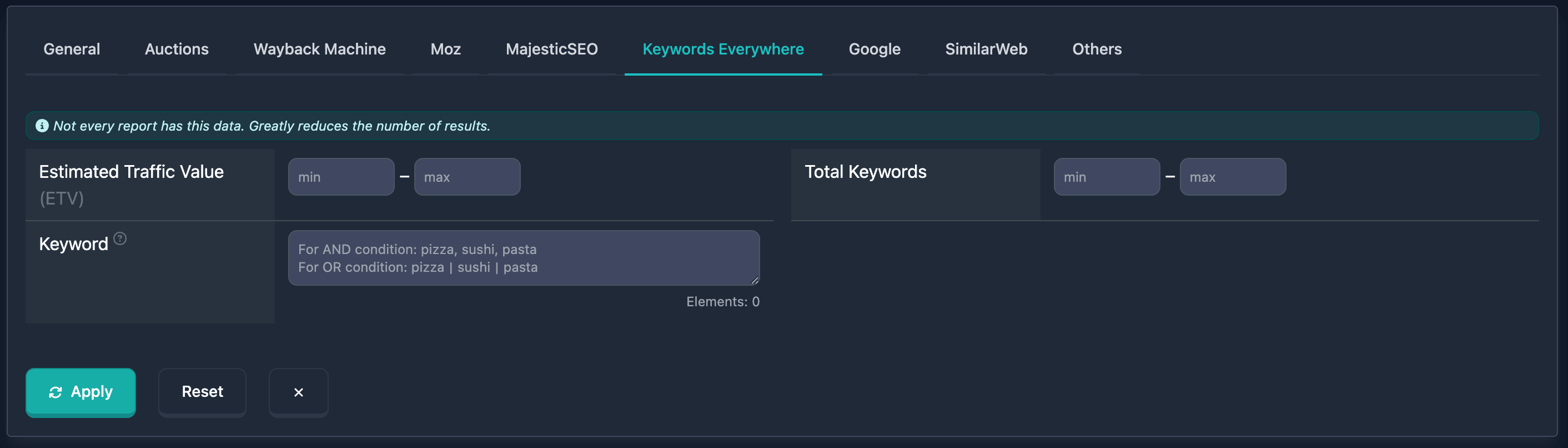
Important: At the top of the Keywords Everywhere block there is a note: “Not every report has this data. Strongly reduces the number of results.” — keep that in mind.
Estimated Traffic Value (ETV) filter
Estimated Traffic Value (ETV) is a Keywords Everywhere metric: estimated value of traffic the domain may get from keywords it ranks for. Entered in USD in the UI.
How to use
- Find Estimated Traffic Value (ETV) in the Keywords Everywhere block
- min — minimum value (USD)
- max — maximum; dash between fields
- Only min, only max, or both for a range
Notes
- ETV is based on Keywords Everywhere data; high ETV often indicates commercially valuable keywords
- Values are 0 or higher
Examples
Example 1: High ETV (from 1000 USD) — min 1000, leave max empty.
Example 2: Moderate ETV (100–500 USD) — min: 100, max: 500.
Example 3: Low ETV (up to 50 USD) — leave min empty, max 50.
Total Keywords filter
Total Keywords selects domains by how many keywords they rank for according to Keywords Everywhere.
How to use
- Find Total Keywords in the Keywords Everywhere block
- min — minimum keyword count
- max — maximum (dash between fields)
- Only min, only max, or both
Notes
- Shows how many keywords the domain ranks for; a large number may indicate broad topical coverage
- Values are 0 or higher
Examples
Example 1: Many keywords (from 1000) — min 1000, max empty.
Example 2: Moderate (100–500) — min: 100, max: 500.
Example 3: Few (up to 50) — min empty, max: 50.
Keyword filter
Keyword finds domains by keywords they rank for per Keywords Everywhere. One text field with logic hints and an element counter.
How to use
- Find Keyword in the Keywords Everywhere block
- Enter keywords or phrases
- Separators:
- Comma (
,) — AND: the domain must rank for all listed keywords - Pipe
|— OR: any keyword is enough
- Comma (
- Elements counter at the bottom right (max 20). Over the limit shows Maximum … elements allowed
Placeholder (same idea as “Words in domain”): “For AND: pizza, sushi, pasta. For OR: pizza|sushi|pasta”.
Notes
- Full phrases or fragments; case does not matter
- Only keywords from the TOP 3 results count (see the field hint)
Examples
Example 1: Any keyword (OR) — shop | store | buy. Domains ranking for any of these.
Example 2: All keywords (AND) — tech, news. Domains ranking for both.
Example 3: One phrase — e.g. best domain names. Domains ranking for that phrase or part of it.
Combining Keywords Everywhere filters
All Keywords Everywhere filters can be combined with other filters for finer search. Multiple filters use AND — the domain must match all conditions. You can save combinations.
Combined example
Goal: ETV from 500 USD, at least 500 keywords, and ranking for “domain”.
In the UI:
- Estimated Traffic Value (ETV): min 500
- Total Keywords: min 500
- Keyword:
domain
Results must satisfy all of the above.
Common issues and fixes
“Maximum … elements allowed”
Why: More than 20 keywords or phrases in Keyword. The Elements counter and red warning appear when over the limit.
What to do: Remove entries until the counter is 20 or below.
No results after applying filters
Why: Conditions are too strict, or Keywords Everywhere data is missing for many domains (see the note at the top).
What to do: Relax filters (widen ETV/Total Keywords ranges, fewer keywords in Keyword) until results appear. Use other filters if needed.
Few results because of Keywords Everywhere data
Why: Not every domain has Keywords Everywhere data — filters only apply where data exists.
What to do: Read the message at the top (“Not every report has this data…”). For other domains, rely on the rest of the search filters.
Tips
-
Combine ETV and Total Keywords: High ETV and many keywords help surface commercially interesting domains.
-
Keyword for niches: Enter queries from your niche — results show domains ranking for them.
-
Keyword logic: Comma = all required (AND); pipe
|= any (OR). The placeholder repeats this. -
Watch Elements: Keyword allows up to 20 elements; over the limit triggers a warning.
-
Data availability: The block warns that not every report has Keywords Everywhere data, which reduces results.
-
ETV as a signal: High ETV often indicates commercially valuable keywords.
Documentation is current as of the last update. Filter functionality may expand in future versions.