- How Majestic filters work
- Trust Flow (TF) filter
- Citation Flow (CF) filter
- Backlinks filter
- Referring Domains filter
- Majestic Topics filter
- Majestic Language filter
- Combining Majestic filters
- Troubleshooting
- Tips
How Majestic filters work
Majestic filters let you search domains using metrics from Majestic SEO: Trust Flow (TF), Citation Flow (CF), backlink count and referring domains, plus topics and anchor languages for backlinks.
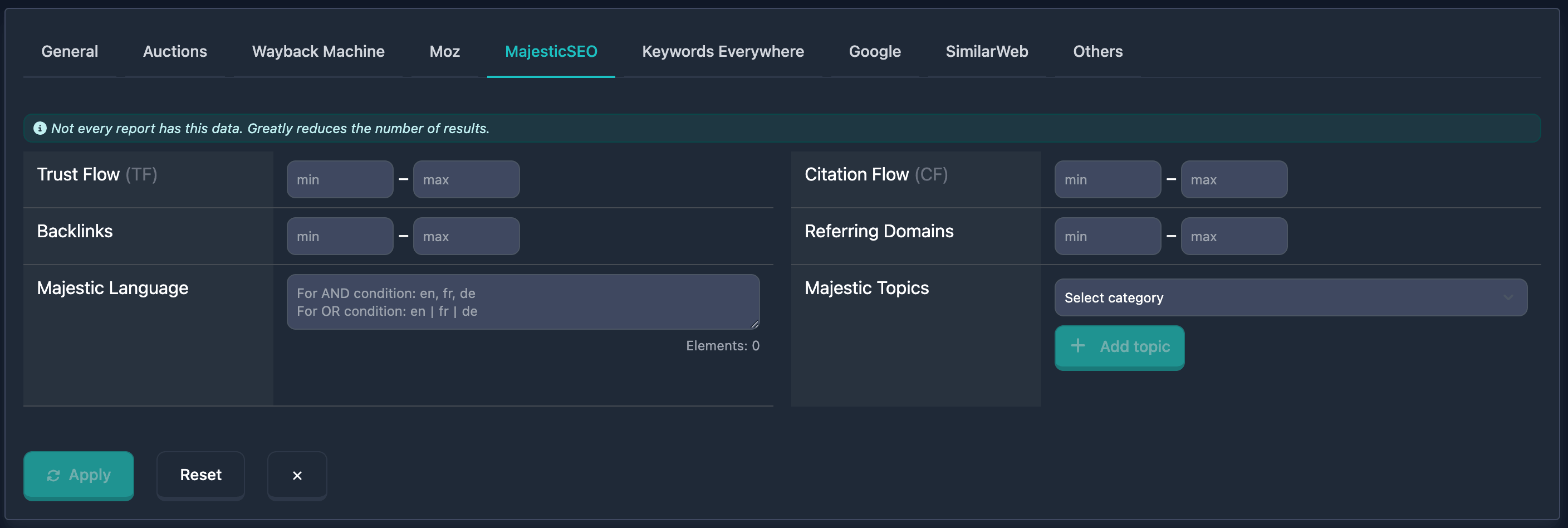
Important: At the top of the Majestic block you’ll see: “Not every report has this data. Greatly reduces the number of results.” — keep that in mind when using these filters.
Trust Flow (TF) filter
Trust Flow (TF) is a Majestic metric: backlink quality based on trust in referring domains. Values run from 0 to 100; higher means better links. In the UI you set min and max.
How to use
- Find Trust Flow (TF) in the Majestic filters block
- In min, enter the minimum (0–100)
- In max, enter the maximum (0–100); a dash appears between the fields
- You can fill min only, max only, or both for a range
Notes
- High TF (40+) usually indicates quality backlinks; mid (20–40) moderate quality; low (0–20) a weak profile. TF matters more than Citation Flow for quality.
Examples
Example 1: High TF (40–100) — min: 40, max: 100.
Example 2: Very high TF (from 50) — min: 50, leave max empty.
Citation Flow (CF) filter
Citation Flow (CF) is a Majestic metric: the volume of backlinks to the domain. Values run from 0 to 100. In the UI: min and max.
How to use
- Find Citation Flow (CF) in the Majestic block
- Enter min and max (0–100)
- You can use min only, max only, or both
Notes
- CF reflects link quantity, not quality. High CF (40+) means many links; mid (20–40) moderate; low (0–20) few.
Examples
Example 1: High CF (40–100) — min: 40, max: 100.
Example 2: Moderate CF (20–40) — min: 20, max: 40.
Backlinks filter
The Backlinks filter selects domains by backlink count from Majestic. The UI uses min and max (no 100 cap like TF/CF).
How to use
- Find Backlinks in the Majestic block
- min = minimum backlinks, max = maximum (dash between fields)
- min only, max only, or both
Notes
- Shows total links to the domain; a large number often means popularity. Quality beats quantity.
Examples
Example 1: Many backlinks (from 1000) — min: 1000, leave max empty.
Example 2: Moderate (100–1000) — min: 100, max: 1000.
Referring Domains filter
Referring Domains selects domains by how many unique referring domains Majestic reports. min and max in the UI.
How to use
- Find Referring Domains in the Majestic block
- Enter min and/or max (0 upward; no hard upper limit in the UI)
- min only, max only, or both
Notes
- Many referring domains often means a more natural, diverse link profile.
Examples
Example 1: Many referring domains (from 100) — min: 100, leave max empty.
Example 2: Moderate (10–50) — min: 10, max: 50.
Majestic Topics filter
Majestic Topics searches domains by Majestic topical categories (from backlinks). The UI has two dropdowns and an add button.
How to use
- Find Majestic Topics in Majestic filters
- In the first list (“Select category”), pick a category
- In the second (“Select subcategory”), optionally pick a subcategory
- Click Add topic (plus icon) to add the topic to the filter
- Added topics show as badges below; remove one with the X on the badge
- You can add several topics — results include domains matching at least one (OR)
Examples
Example 1: One category — e.g. “Business”, then Add topic.
Example 2: Category + subcategory — “Technology”, then “Software”, then Add topic.
Example 3: Multiple topics — add e.g. “Business”, “Technology / Software”, “Health / Medicine”. Results match any of them.
Majestic Language filter
Majestic Language filters domains by anchor languages for backlinks (Majestic data). One text field with a hint and an element counter.
How to use
- Find Majestic Language in the Majestic block
- Enter language codes or names in one field
- Separators control logic:
- Comma (
,) — AND: anchors must include all listed languages - Pipe
|— OR: any listed language is enough
- Comma (
- Bottom right: Elements counter (max 20). If you exceed the limit, you’ll see Maximum … elements allowed
Placeholder: “For AND: en, fr, de. For OR: en|fr|de”.
Notes
- Use language codes only (e.g. en, ru, de).
Examples
Example 1: Two languages at once (AND) — en, de.
Example 2: Any of several European languages (OR) — en | de | fr | es.
Combining Majestic filters
You can combine Majestic filters with others for tighter search. With multiple filters active, logic is AND — the domain must match all conditions. You can save useful combinations.
Example
Goal: High TF (from 40), moderate CF (20–40), many referring domains (from 50), Business topic.
In the UI:
- Trust Flow (TF): min 40, max 100
- Citation Flow (CF): min 20, max 40
- Referring Domains: min 50
- Majestic Topics: choose “Business”, Add topic
Results only include domains matching all of the above.
Troubleshooting
“Maximum … elements allowed”
Cause: More than 20 languages/elements in Majestic Language. The Elements counter and a red warning appear when over the limit.
Fix: Remove entries until the counter is ≤ 20.
No results
Cause: Conditions too strict, or Majestic data missing for many domains (see the block hint).
Fix: Relax or turn off filters step by step (widen TF/CF/Backlinks/Referring Domains ranges, remove some topics or languages) to see when results appear. Use other filters if needed.
Few results because of Majestic coverage
Cause: Not every domain has Majestic data — filters only apply where data exists.
Fix: Remember the note at the top (“Not every report has this data…”). For other domains, rely on the rest of the search filters.
Tips
-
TF + CF: High Trust Flow with moderate Citation Flow helps find domains with quality links. TF close to or above CF is often good.
-
Majestic Topics: Pick category/subcategory, Add topic — results align with those niches.
-
Majestic Language: Comma = all languages required (AND); pipe
|= any (AND). The placeholder repeats this. -
Elements: Max 20 in Majestic Language; you’ll get a warning if you exceed it.
-
Data availability: The block warns that not every report has Majestic data — that reduces result counts.
-
Referring Domains: A high count often means a more natural link profile.