- General principles of saving filters
- How to save a filter
- Automatic name generation
- Updating an existing filter
- What gets saved
- Requirements to save a filter
- Using saved filters
- Managing saved filters
- Troubleshooting
- Examples
- Tips
General principles of saving filters
Saving filters lets you store your current search settings for quick access later. Saved filters appear in the filter dropdown (next to ready-made filters — presets) and can be applied in one click.
Important: You can only save a custom filter (when custom is selected in the filter list). Built-in (preset) filters cannot be saved or edited.
How to save a filter
Step 1: Configure the filter
- Open the filter panel by clicking Filters
- Fill in the fields you need on any filter tabs (General, Source, Wayback Machine, Moz, MajesticSEO, Keywords Everywhere, SimilarWeb, Others)
- Apply the filter by clicking Apply
Step 2: Open the save dialog
- Make sure custom is selected in the filter dropdown (custom filter)
- Click the floppy-disk icon (next to the CSV export button)
- A modal opens to save the filter
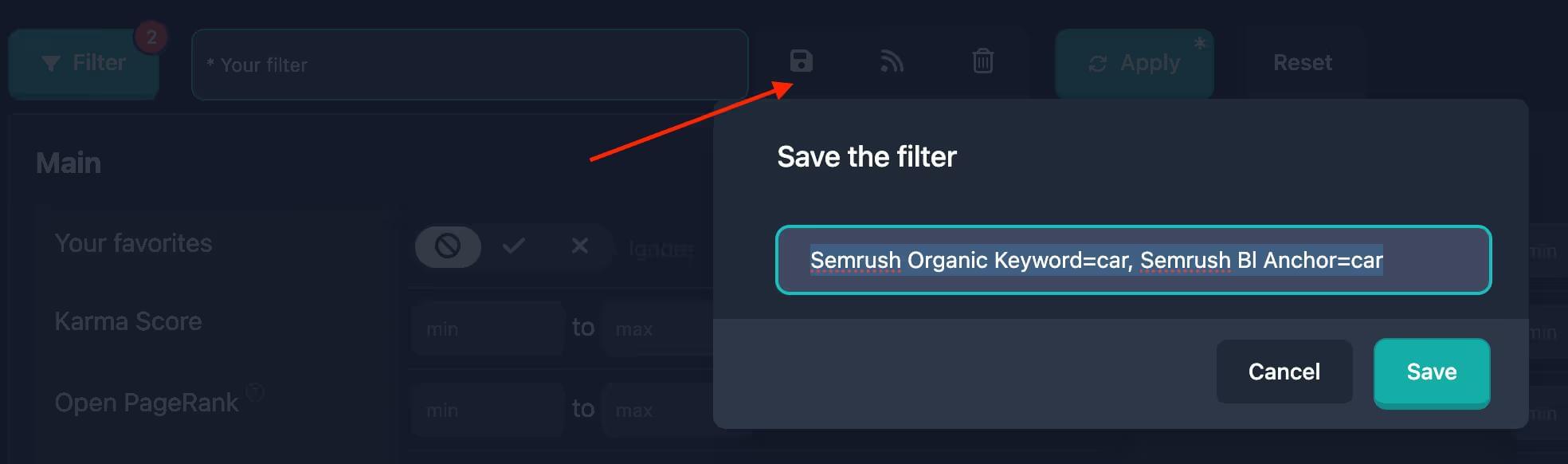
Step 3: Enter a filter name
- The modal shows a field for the filter name
- The name may be generated automatically from the fields you filled in
- You can keep the generated name or change it
- The name must be unique among your saved filters
Step 4: Save the filter
- Click Save in the modal
- The filter is saved and automatically selected in the filter list
- The modal closes
Automatic name generation
When you open the save dialog, the name field may already contain a suggestion — the system builds it from the filter fields you set. You can keep it or enter your own. The name must be unique among your saved filters. If you enter a name that already exists, that saved filter will be updated with the new settings.
Examples: Names might look like “Karma from 50, one category”, “Visits 10k–100k”, “Domain example, 2 TLDs, Karma from 30” depending on which fields you filled in.
Updating an existing filter
If you save a filter with a name that already exists among your saved filters, the system updates that filter with the new settings instead of creating a duplicate.
How to update
- Configure the filter with the parameters you want
- Open the save dialog
- Enter the name of an existing filter (or pick it if the UI suggests it)
- Click Save
- The existing filter is updated with the new settings
Important: Preset filters cannot be updated. If you try to save a filter using the name of a preset filter, a new filter with that same name will be created.
What gets saved
Everything you currently set in the filter panel is saved: ranges, selected categories, dates, TLDs, etc. Empty or unused parameters are not stored.
Dates in a saved filter
For date fields the system may store not only fixed dates but relative periods (e.g. last 24 hours, last 7 days, current year). When you apply the filter, dates are recalculated so the saved filter stays useful.
Requirements to save a filter
You can save only when:
- Custom filter is selected: The filter dropdown must be custom
- At least one field is filled: At least one filter parameter must be set
- A name is provided: The name field must not be empty
If any condition fails, the save control stays disabled or the modal does not open.
Using saved filters
After saving, the filter appears in the filter dropdown:
- Open the filter dropdown (same as AI search)
- Find your saved filter under user filters
- Select it — settings apply automatically
Managing saved filters
You can:
- Apply: Pick it from the list to load settings
- Update: Save again with the same name to replace settings
- Delete: Use the trash icon to remove the filter
- Email alerts: Subscribe to notifications for new domains matching the filter, or manage subscriptions in profile newsletters

Important: Only user filters can be deleted. Preset filters cannot be removed.
Troubleshooting
Save button disabled
Cause: A preset is selected or nothing valid is selected.
Fix:
- Change any filter setting to switch to a custom filter
- Or manually select custom in the filter list
Cannot save an empty filter
Cause: No filter field is filled.
Fix: Fill at least one field on any tab before saving.
Filter does not save
Cause: Network issue or auth error.
Fix:
- Check your internet connection
- Make sure you are signed in
- Try saving again
- If it persists, contact support
Filter saved but not in the list
Cause: Browser cache or data delay.
Fix:
- Refresh the page
- Check the list again
- If still missing, save again under a different name
Examples
Example 1: Simple saved filter
Goal: Save a filter for domains with high KarmaScore.
Steps:
- Open the General tab
- Set KarmaScore min = 70
- Click Apply
- Click the save-filter button
- Enter name: “High KarmaScore”
- Click Save
Result: The filter is saved and available in the list for one-click use.
Example 2: Complex filter with several parameters
Goal: Save a filter for popular US-traffic domains.
Steps:
- Open the SimilarWeb tab
- Set Visits min = 50000
- Set Country Share for the United States = 50%
- Open the General tab
- Set KarmaScore min = 60
- Click Apply
- Save as “Popular US domains”
Result: A multi-parameter filter you can apply in one click.
Example 3: Updating an existing filter
Goal: Change parameters for a filter already named “My domains”.
Steps:
- Configure new parameters
- Open the save dialog
- Enter “My domains” (same as before)
- Click Save
Result: The existing filter is updated; the name stays the same.
Tips
- Clear names: Names should describe what the filter finds
- Group similar filters: Use consistent naming for similar setups
- Refresh filters when needs change: Update saved filters as your criteria evolve
- Remove unused filters: Keep the list tidy
- Relative dates: Date-based filters use relative periods when appropriate so they stay valid over time