- How SimilarWeb filters work
- Visits filter
- Last Traffic filter
- Country Share filter
- Traffic source filters
- Combining SimilarWeb filters
- Troubleshooting
- Tips for SimilarWeb filters
How SimilarWeb filters work
SimilarWeb filters let you search domains using SimilarWeb data: visit counts, date of last traffic, geographic traffic share by country, and traffic sources (social, paid referrals, mail, referrals, search, direct).
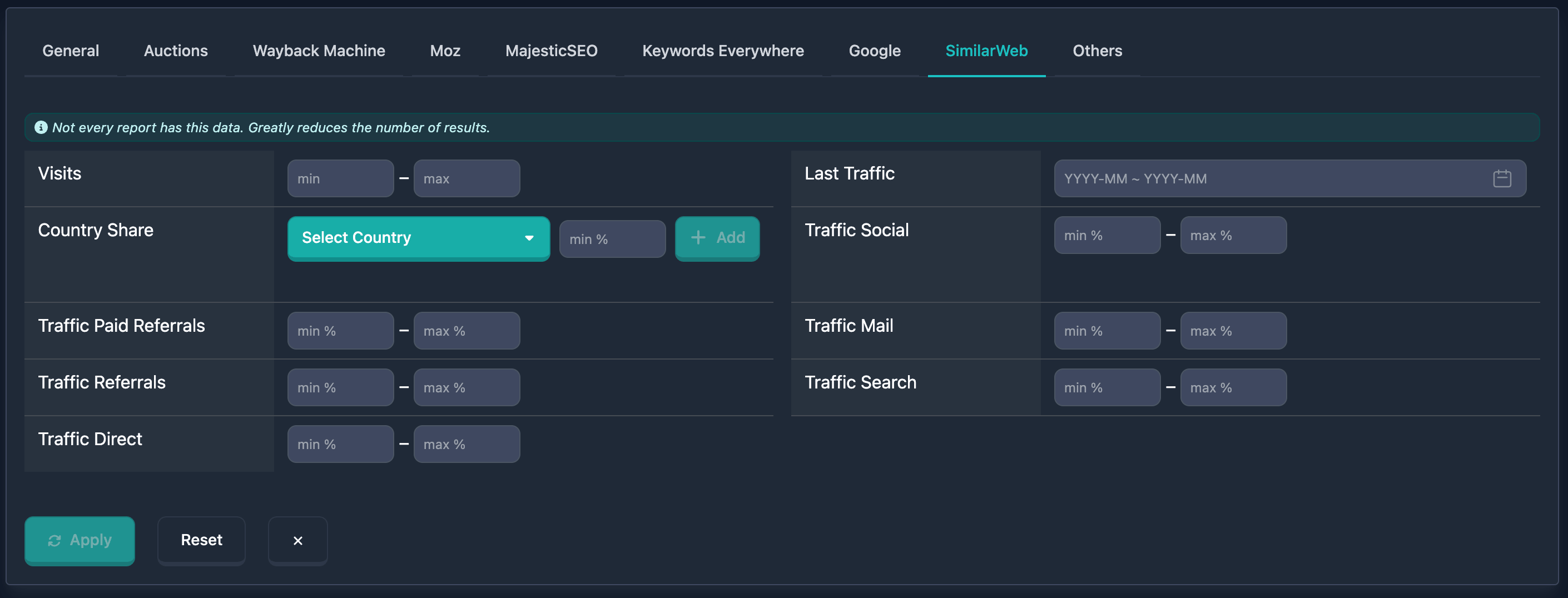
Important: At the start of the SimilarWeb block there is a note: “Not every report has this data. Strongly reduces the number of results.” — keep that in mind.
Visits filter
The Visits filter selects domains by visit count from SimilarWeb. In the UI there are min and max fields (placeholders “min” and “max”).
How to use
- Find Visits in the SimilarWeb block
- Enter bounds in min and max (0 and above)
- You can fill only min, only max, or both
Examples
Example 1: High traffic (from 100,000 visits) — enter 100000 in min, leave max empty.
Example 2: Moderate traffic (10,000–100,000) — min: 10000, max: 100000.
Last Traffic filter
The Last Traffic filter selects domains by the period for which traffic data exists. In the UI there is a period picker (calendar) and quick buttons.
How to use
- Find Last Traffic in the SimilarWeb block
- Click the field — a calendar opens; choose start and end month of the range
- Or use quick buttons: Last 1 month, Last 3 months, Last 6 months, This year, Last year
The filter returns domains that have traffic data in the selected month range.
Examples
Example 1: Data for the last 3 months — click Last 3 months.
Example 2: Data for a specific year — open the calendar and pick start and end months (e.g. January and December of that year).
Country Share filter
The Country Share filter selects domains by traffic share from chosen countries. In the UI there is a searchable country dropdown, a minimum percentage per country, an Add button; added countries appear as badges with a remove (×) control and Clear All to reset. A domain matches if any listed country condition is satisfied.
How to use
- Find Country Share in SimilarWeb filters
- Pick a country in the dropdown (optionally set minimum traffic share, 0–100%)
- Click Add — the country appears as a badge
- Repeat for more countries; remove one with × on the badge; Clear All clears the list
Examples
Example 1: Traffic from the US with no threshold — select United States (US), leave percentage empty, click Add.
Example 2: At least 50% traffic from the US — select United States, set 50%, click Add.
Example 3: Several countries (any can match) — e.g. US 30%+, GB 20%+, Germany with no percentage.
Traffic source filters
Traffic source filters set the share of traffic from each channel (0–100%). Each source has min % and max %; you can fill one or both.
- Traffic Social — share from social networks
- Traffic Paid Referrals — paid referrals (ads, affiliate)
- Traffic Mail — email campaigns and email marketing
- Traffic Referrals — referral traffic from other sites (non-paid)
- Traffic Search — search traffic (Google, Bing, etc.)
- Traffic Direct — direct traffic (URL entry, bookmarks)
How to use
- Find the block (Traffic Social, Traffic Paid Referrals, Traffic Mail, Traffic Referrals, Traffic Search, Traffic Direct) in SimilarWeb filters
- Enter bounds in min % and max % (0–100)
- You can set only min %, only max %, or both
Examples
Traffic Social: at least 30% from social — min % 30, max % empty.
Traffic Paid Referrals: at least 20% — min %: 20.
Traffic Mail: at least 10% — min %: 10.
Traffic Referrals: at least 30% — min %: 30.
Traffic Search: at least 50% search — min %: 50.
Traffic Direct: at least 40% direct — min %: 40.
Combining SimilarWeb filters
All SimilarWeb filters can be combined with other filters for tighter search. With several filters active the logic is AND — a domain must match all conditions. Useful combinations can be saved for quick reuse.
Combined example
Goal: High traffic (from 50,000 visits), data for the last 6 months, at least 50% traffic from the US, at least 40% search traffic.
In the UI: set Visits min 50000; Last Traffic — Last 6 months; Country Share — add United States at 50%; Traffic Search — min % 40. Results include only domains that match all conditions.
Troubleshooting
No results after applying filters
Why: Conditions are too strict, or not every domain has SimilarWeb data (see the note at the top of the block).
What to do: Relax or turn off filters one by one to see which change brings results back. Use other filters if needed.
Choosing dates in Last Traffic
Why: You need to set a period from the calendar.
What to do: Click Last Traffic and pick a range in the calendar or use quick buttons (Last 1 month, Last 3 months, etc.) — the format is set automatically.
Few results because of SimilarWeb coverage
Why: SimilarWeb data is not available for every domain.
What to do: Remember the warning at the top of the block (“Not every report has this data…”). For domains without data, rely on other search filters.
Tips for SimilarWeb filters
-
Combine filters: Visits, Last Traffic, Country Share, and sources together narrow results to the profile you need.
-
Last Traffic: Quick buttons (Last 1 month, Last 3 months, Last 6 months, This year, Last year) are handy for recent data.
-
Country Share: Set a minimum percentage per country for clearer geo targeting.
-
Traffic sources: Combine min % / max % across channels for your strategy (SEO, social, direct, etc.).
-
Data availability: The block warns that not every report has SimilarWeb data — that reduces how many results you get.