- How Wayback Machine filters work
- Content changes filter
- Age filter
- First snap filter
- Last snap filter
- Keywords in content filter
- Language Filters
- Server Code Share filter
- Hieroglyphs (CJK) filter
- Redirects (30x) filter
- Error 403 filter
- Website IDs filter
- Combining Wayback filters
- Troubleshooting
- Tips
How Wayback Machine filters work
Wayback Machine filters search domains using data from the Internet Archive (Wayback Machine). They analyze a domain’s history, content, languages, HTTP response codes, and other parameters stored in the archive.
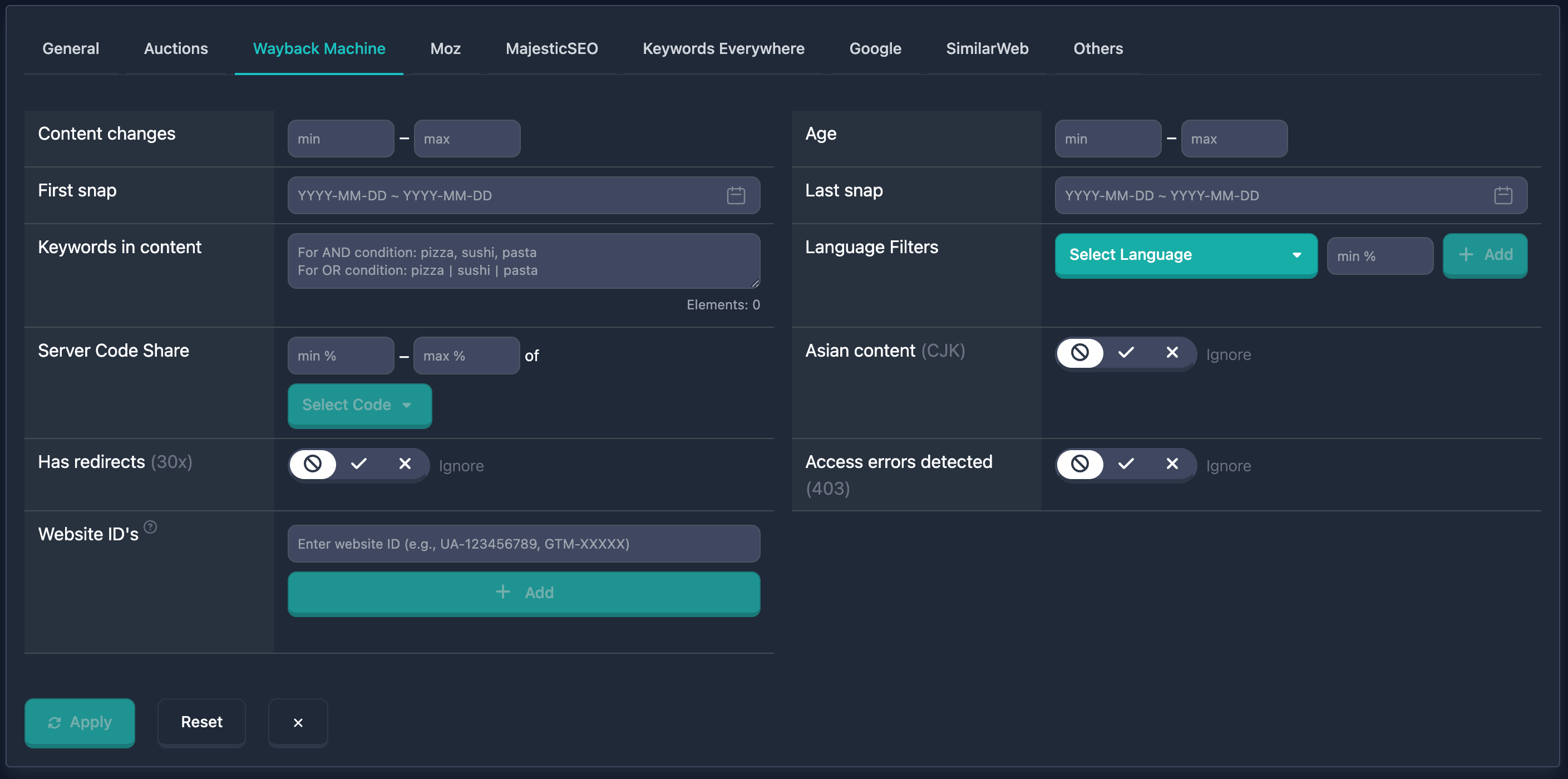
Important: All Wayback Machine filters rely on archive data. If a domain was not crawled by Wayback Machine, these filters cannot match it.
Content changes filter
The Content changes filter selects domains by how many content changes appear in the archive history. The UI has min and max (0 or higher).
A content change means the page changed by more than 50% compared to the previous archived version in Wayback Machine.
This filter helps find domains with little change (0–3 changes). A large number of changes may indicate ownership changes.
How to use
- Find Content changes in the Wayback Machine block
- Enter bounds in min and max
- You can fill only min, only max, or both
Examples
Example 1: Active updates (from 50) — min 50, max empty.
Example 2: Stable domains (0–5 changes) — min: 0, max: 5.
Age filter
The Age filter selects domains by age in years (from archive data). The UI has min and max (years, ≥ 0).
Age is measured from the first content snapshot in Wayback Machine.
You can use this to find aged domains.
How to use
- Find Age in the Wayback Machine block
- Enter min and max in years
- Only min, only max, or both
Examples
Example 1: Old domains (10+ years) — min 10, max empty.
Example 2: Young domains (0–2 years) — min: 0, max: 2.
First snap filter
First snap selects domains by the date of the first snapshot in the archive. The UI has a date picker and quick buttons.
How to use
- Find First snap
- Click the field — calendar; pick start and end dates of the range
- Or use quick buttons: Older than 2 years, Older than 5 years, Older than 10 years, Last year
Examples
Example 1: First indexed more than 10 years ago — Older than 10 years.
Example 2: First snapshot in a specific year — pick a range in the calendar (e.g. Jan 1–Dec 31 of that year).
Last snap filter
Last snap selects domains by the date of the latest snapshot. Date picker and quick buttons.
How to use
- Find Last snap
- Click — calendar; pick start and end dates
- Or Last 7 days, Last 30 days, Last 60 days, This month, Last year
Examples
Example 1: Latest snapshot in the last 30 days — Last 30 days.
Example 2: Snapshot in the previous year — Last year or a calendar range.
Keywords in content filter
Keywords in content searches domains by keywords in archived page content. There is a text field with logic hints and an Elements counter (max 20); if exceeded, a Maximum … elements allowed warning appears.
How to use
- Find Keywords in content
- Enter keywords: comma = AND (all terms required), pipe
|= OR (any term) - Watch the Elements counter
Examples
Example 1: Any of several words (OR) — shop | store | buy.
Example 2: Both words (AND) — tech, news.
Language Filters
Language Filters select domains by content languages in the archive, with an optional minimum share per language. Searchable language dropdown, percentage field, Add; languages as badges (× to remove), Clear All. A domain matches if any listed language condition is met.
How to use
- Find Language Filters
- Pick a language; optionally set minimum % (0–100%)
- Add; remove with × on a badge; Clear All clears all
Examples
Example 1: English content with no threshold — English (en), Add.
Example 2: At least 50% Russian — Russian (ru), 50%, Add.
Example 3: Several languages (any can match) — e.g. English 30%+, German 20%+, French with no %.
Server Code Share filter
Server Code Share finds domains by the share of specific HTTP status codes in Wayback history. You can set a code and its percentage.
A 100% share of “200” responses can surface domains whose history had no server errors, redirects, or access-denied responses — often a sign of stable past behavior.
How to use
- Find Server Code Share in Wayback filters
- Enter minimum % in min % (0–100)
- Enter maximum % in max % (0–100)
- Click Select Code to pick an HTTP code (enabled after you enter a percentage)
- Choose the code from the list
- Clear resets the selected code
Available HTTP codes
- 200 — OK
- 301 — Moved Permanently
- 302 — Found
- 307 — Temporary Redirect
- 308 — Permanent Redirect
- 400 — Bad Request
- 401 — Unauthorized
- 403 — Forbidden
- 404 — Not Found
- 500 — Internal Server Error
- 502 — Bad Gateway
- 503 — Service Unavailable
Select Code activates after at least one of min % or max % is set. Clear clears the selected code.
Examples
Example 1: At least 80% “200 OK” — min % 80, Select Code, choose 200.
Example 2: 50–100% “404” errors — min % 50, max % 100, code 404.
Example 3: Any share of 301 redirects — code 301, leave percentages empty.
Hieroglyphs (CJK) filter
Hieroglyphs (CJK) finds domains that do or do not contain CJK content (Chinese, Japanese, Korean).
If you are not targeting Asian-language domains, excluding such content is often a good idea — historically many such domains used aggressive promotion tactics.
How to use
- Find Hieroglyphs (CJK)
- Three-state control:
- Unknown (forbidden icon) — filter off
- Yes (checkmark) — only domains with CJK content
- No (cross) — only domains without CJK content
Details
- The filter checks for CJK characters in content
- Detection uses patterns from Wayback data
- Useful for including or excluding Asian-language content
Examples
Example 1: Domains with CJK content — set to Yes.
Example 2: Domains without CJK — set to No.
Redirects (30x) filter
Redirects (30x) finds domains that do or do not have redirects (HTTP 301, 302, 307, 308) in Wayback history to other domains. Same-domain redirects (e.g. http to https) do not count.
Redirects to other domains can indicate black-hat SEO, but also ownership changes (registrar parking), moves to another domain, or hosting issues (redirect to host page).
How to use
- Find Redirects (30x)
- Three-state control: Unknown, Yes (only with cross-domain redirects), No (only without)
Details
- Checks for 301, 302, 307, 308 in domain history
- Only cross-domain redirects count
- May reflect ownership changes, migrations, or SEO tactics
Examples
Example 1: Domains with redirects — Yes.
Example 2: Domains without redirects — No.
Error 403 filter
Error 403 finds domains that do or do not have HTTP 403 (Forbidden) responses in Wayback history.
403 often means the site owner blocked Wayback from crawling — sometimes a sign of black-hat SEO practices.
How to use
- Find Error 403
- Unknown, Yes (only with 403), No (only without)
Details
- Detects HTTP 403 in history
- May indicate access restrictions, protected content, or SEO-related blocking
Examples
Example 1: Domains with 403 — Yes.
Example 2: Domains without 403 — No.
Website IDs filter
Website IDs searches domains by analytics/widget IDs (e.g. Google Analytics, Yandex Metrica) found in archived content — useful for finding domains likely owned by the same party.
How to use
- Find Website IDs
- Enter an ID (e.g.
UA-123456789,GTM-XXXXX) - Add or Enter/Space to add
- IDs appear as badges; × removes one; Clear All clears all
There is a help icon next to the field name. Matching is any of the IDs; case-insensitive.
Details
- Supports analytics/widget IDs found in archive content
- Multiple IDs mean domains matching any ID
Examples
Example 1: Specific Google Analytics ID — UA-123456789.
Example 2: Any of several IDs — UA-123456789, GTM-XXXXX, 12345678.
Example 3: Same owner — add an ID from one domain to find others using the same ID.
Combining Wayback filters
All Wayback filters can be combined with other filters. Multiple filters use AND — every condition must hold. You can save combinations.
Combined example
Goal: Old domains (10+ years), at least 50% English content, no redirects, last snapshot in the last 30 days.
UI: Age min 10; Language Filters — English (en) 50%; Redirects (30x) — No; Last snap — Last 30 days.
Troubleshooting
“Maximum … elements allowed”
Why: More than 20 elements in Keywords in content; red warning under the field.
Fix: Remove elements until the counter is ≤ 20.
No results
Why: Conditions too strict, or no domains in the archive match.
Fix: Relax or disable filters step by step.
First snap / Last snap
Fix: Use the calendar or quick buttons — date format is applied automatically.
Select Code inactive
Why: In Server Code Share, neither min % nor max % is set.
Fix: Enter at least one percentage, then Select Code becomes available.
Tips
-
First snap / Last snap: Quick buttons (Older than 2/5/10 years, Last 7/30/60 days, This month, Last year) simplify ranges.
-
Combine filters to narrow results (age, language, codes, redirects, etc.).
-
Keywords in content: comma = AND,
|= OR. Watch the Elements limit (20). -
Language Filters: use minimum % for tighter language targeting.
-
Website IDs: add a known analytics ID to find other domains using the same ID (possible same owner).