- How filters work
- Favorites filter (Your favorites)
- Report added date filter (Added at)
- Karma Content Score filter
- Karma Domain Metric filter
- gTLDs/ccTLDs filter
- Words in domain filter
- Categories filter
- Digits in domain filter
- Hyphens in domain filter
- Domain length filter
- Combining filters
- Common issues and fixes
- Tips
How filters work
All filters use logical AND — when you use several filters at once, the system finds domains that match all specified conditions at the same time.
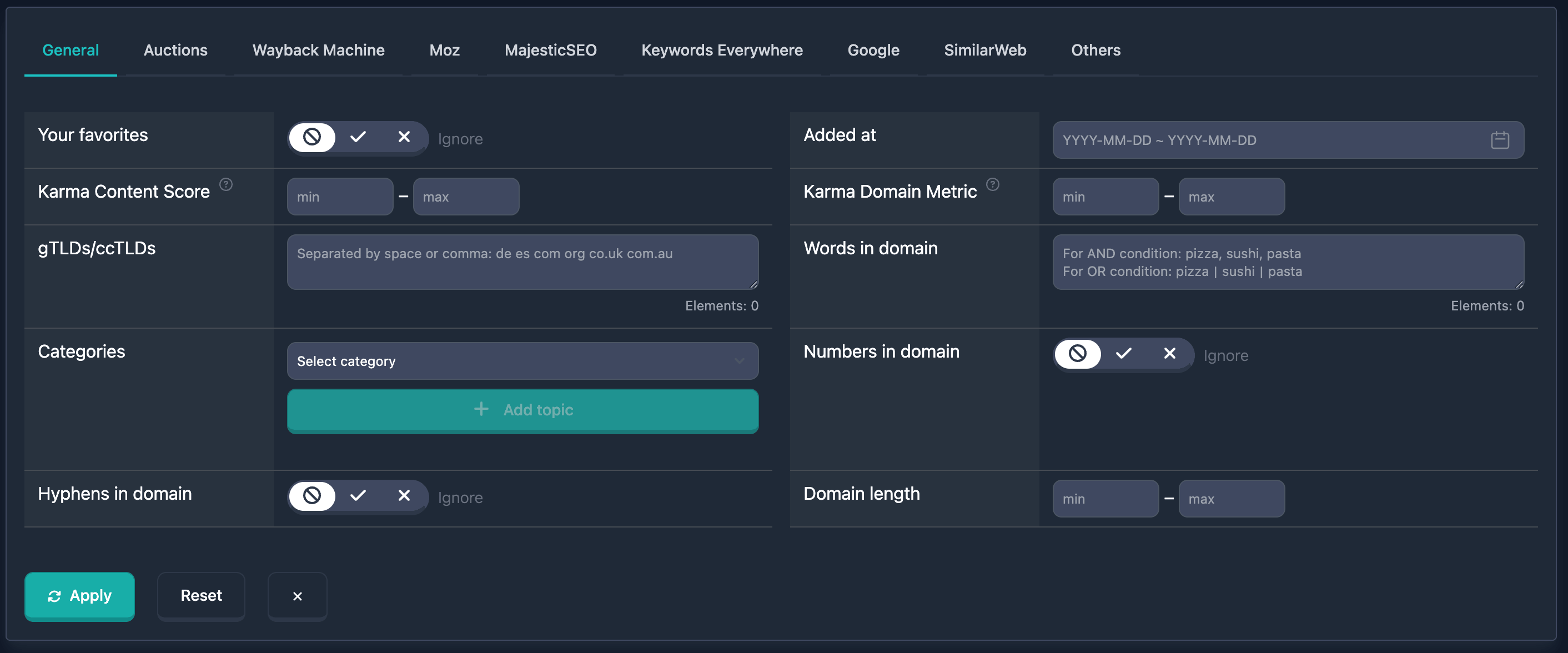
Important: Filters apply only after you click search or apply. Changes in filter fields are not applied automatically.
Favorites filter (Your favorites)
The Your favorites filter shows only domains from your favorites or excludes them from results.
See also: How to add a domain to Favorites.
How to use
- Find the Your favorites field in the main filters block
- Use the three-state toggle:
- Unknown (forbidden icon) — filter is ignored; all domains are shown
- Yes (checkmark) — only domains from favorites
- No (cross) — favorite domains are excluded from results
There is also a quick Favorites preset in the dropdown.
Notes
- The filter requires a logged-in user
- If you have no favorite domains, Yes returns no results
Examples
Example 1: Show only favorite domains
- Set the toggle to Yes
Example 2: Exclude favorites from search
- Set the toggle to No
Report added date filter (Added at)
The Added at filter selects domains added to the database in the chosen period.
How to use
- Find the Added at field in the main filters block
- Click the date field — a calendar opens
- Choose start and end dates for the range
- Time of day is filled automatically (start and end of day); you do not need to enter time manually
Notes
- You can set one date (start and end the same) or a range
Examples
Example 1: Domains added in January 2023 — in the calendar pick a range from 01.01.2023 to 31.01.2023.
Example 2: Domains from the last month — set the start date to 30 days ago and the end to “today”.
Karma Content Score filter
Karma Content Score measures content quality based on Wayback Machine data. Values range from 0 to 100.
Read more in the blog: Karma Score: Evaluating a domain’s content history.
How to use
- Find Karma Content Score in the main filters block (a help icon is next to it)
- Enter the minimum in min (0–100)
- Enter the maximum in max (0–100); a dash appears between the fields
- You can fill only min (score not below), only max (not above), or both for a range
Notes
- Only domains with a calculated Karma Content Score are included
Examples
Example 1: High content quality (70–100) — min 70, max 100.
Example 2: Low quality (0–30) — min: 0, max: 30.
Example 3: Score above 50 — min 50, leave max empty.
Karma Domain Metric filter
Karma Domain Metric is a composite quality score using various metrics and Wayback history. Values range from 0 to 100.
Read more in the blog: Karma Domain Metric.
How to use
- Find Karma Domain Metric in the main filters block (help icon next to it)
- Enter min and max bounds (0–100)
- You can set only min, only max, or both
Notes
- Only domains with a calculated Karma Domain Metric are included
- Karma Content Score and Karma Domain Metric can be combined
Examples
Example 1: High Karma Domain Metric (80–100) — min: 80, max: 100.
Example 2: Mid range (40–60) — min: 40, max: 60.
gTLDs/ccTLDs filter
The gTLDs/ccTLDs filter searches by TLD zones. The UI has one text field where you can enter multiple zones.
How to use
- Find gTLDs/ccTLDs in the main filters block
- Enter zones in one field, separated by space or comma (placeholder: “Separated by space or comma: de es com org co.uk com.au”)
- Elements counter at the bottom right shows how many zones you entered. Maximum 20
- If you exceed the limit, a Maximum … elements allowed message appears in red; near the limit the counter turns yellow
Notes
- Zones can be entered with (
.com) or without (com) a dot - Case does not matter
Examples
Example 1: Popular gTLDs — enter com, net, org, info (comma or space).
Example 2: European zones — e.g. de fr uk nl.
Example 3: Business-oriented — e.g. com biz co (space or comma).
Words in domain filter
Words in domain searches by words or parts of the name. The UI shows one text field with a hint about search logic.
How to use
- Find Words in domain in the main filters block
- Enter words or parts of the domain name
- Separators define logic:
- Comma (
,) — AND: the domain must contain all listed words - Pipe
|— OR: any one word is enough
- Comma (
- Elements counter below (max 20). Over the limit shows Maximum … elements allowed
Placeholder in the UI: “For AND: pizza, sushi, pasta. For OR: pizza|sushi|pasta”.
Notes
- Substring match; you can use word parts or several words
- Case does not matter
Examples
Example 1: Any word (OR) — enter shop | store | buy. Results include domains whose name contains at least one word.
Example 2: Both words (AND) — enter tech, news. Results must contain both “tech” and “news”.
Example 3: Specific string — enter example.com; results include domains containing that substring.
Categories filter
Categories filters by topic. The UI has two dropdowns and add/clear controls.
How to use
- Find the Categories block in main filters
- In the first dropdown (“Select category”) pick a category
- In the second (“Select subcategory”) pick a subcategory if needed
- Click Add topic (plus icon) to add the category or category/subcategory pair to the filter
- Added values appear as badges; click the cross on a badge to remove one
- To clear all categories, click Clear All (trash icon)
Notes
- You can add several categories or pairs — results include domains matching at least one (OR)
Examples
Example 1: Category only — e.g. choose “Business”, click Add topic.
Example 2: Category + subcategory — choose “Technology”, then “Software”, click Add topic. The filter shows something like “Technology / Software”.
Example 3: Several categories — add e.g. “Business”, “Technology / Software”, “Health / Medicine”. Results match any of them.
Digits in domain filter
Digits in domain limits results to names that contain digits or excludes those with digits.
How to use
- Find Digits in domain in the main filters block
- Three-state toggle:
- Unknown — filter ignored
- Yes — only domains with digits in the name (e.g.
example123.com) - No — only domains without digits (e.g.
example.com)
Notes
- Any digits in the name (the part before the zone, e.g. before
.com) count
Examples
Example 1: Only with digits — set Yes. Examples: shop123.com, test2023.com.
Example 2: Only without digits — No. Examples: shop.com, test.com.
Hyphens in domain filter
Hyphens in domain selects names with hyphens or without.
How to use
- Find Hyphens in domain in the main filters block
- Three-state toggle:
- Unknown — filter ignored
- Yes — only domains with hyphens (e.g.
example-site.com) - No — only domains without hyphens (e.g.
examplesite.com)
Notes
- Hyphens in the name (before the zone) count
Examples
Example 1: With hyphens — Yes. Examples: example-site.com, my-shop.com.
Example 2: Without hyphens — No. Examples: examplesite.com, myshop.com.
Domain length filter
Domain length filters by character count in the name (excluding the zone, e.g. without .com).
How to use
- Find Domain length in the main filters block
- min — minimum length (0–100)
- max — maximum (0–100); dash between fields
- Only min, only max, or both
Notes
- Length is only the label before the dot (
example.com→ 7 characters)
Examples
Example 1: Short names (1–5) — min: 1, max: 5. E.g. a.com, ab.com, test.com.
Example 2: Long names (15–30) — min: 15, max: 30.
Example 3: At least 10 characters — min 10, leave max empty.
Combining filters
All filters above can be combined. With several filters active, logic is AND — the domain must match all conditions.
Combined example
Goal: Short .com domains, no digits or hyphens, added in 2023, high Karma Content Score.
In the UI:
- gTLDs/ccTLDs:
com - Digits in domain: No
- Hyphens in domain: No
- Domain length: min 1, max 5
- Added at: 01.01.2023–31.12.2023
- Karma Content Score: min 70, max 100
Results include only domains that match all of the above.
Common issues and fixes
“Maximum … elements allowed”
Why: More than 20 elements in Words in domain or gTLDs/ccTLDs. The Elements counter and a red warning appear when over the limit.
What to do: Remove extra entries until the counter is 20 or below.
No results after applying filters
Why: The combination is too strict — no domain satisfies every filter.
What to do: Relax or disable filters one by one (widen ranges or remove conditions) until results appear.
Date input error
Why: Date was typed manually in the wrong format.
What to do: Use the calendar by clicking Added at — the date is inserted in the correct format.
Tips
-
Start with 1–2 filters: Add conditions gradually so you do not empty the list by accident.
-
Watch the Elements counter: In Words in domain and gTLDs/ccTLDs, max is 20; over the limit triggers a warning.
-
Words in domain logic: Comma = all words (AND); pipe
|= any word (OR). The placeholder repeats this. -
Check result count: After applying filters, see how many domains matched; relax or tighten as needed.
-
Save useful combinations: Frequently used sets can be saved for quick access and applied in one click.