- Where the button is
- Who can add a reminder
- “Remind 1 h before” menu
- What goes into the calendar event
- How to add on your phone via QR
- Errors and common situations
- Related report features
- In short
In a domain report with an active lot, you can set a calendar reminder 1 hour before bidding or listing ends. The event includes a link to the lot on the venue and a link to the Karma.Domains report, so you do not miss the deadline and can quickly return to the analytics.
The feature is available on the Pro plan for full reports from Auctions, Backorder, and Buy Now. In demo mode and without active lots, the calendar button is unavailable.
Where the button is
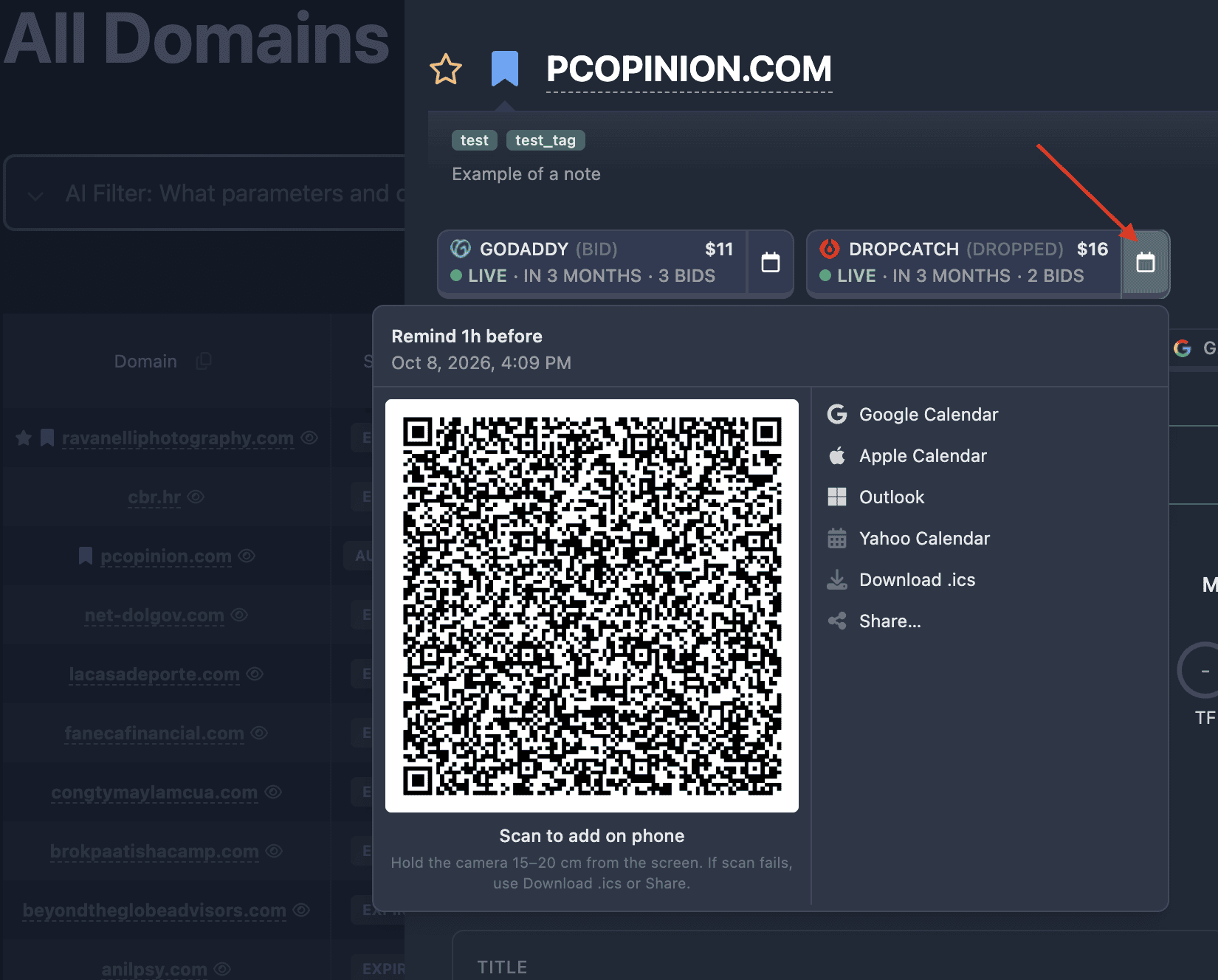
Below the report header, in the active lots block, each venue card has a separate button with a calendar icon to the right of the LIVE button (price, time left, bids). Tooltip on hover: “Add to calendar”.
The block is shown when the domain has non-expired lots: end_time is still in the future. Each such lot has its own button and its own reminder (venue, price, and deadline may differ).
In reports from Expired, a domain registration button is shown instead of lots; the auction calendar is not used there.
Who can add a reminder
Full calendar access is available to a signed-in user on the Pro plan if the report is not in demo mode.
- Not Pro: the menu opens, but items are marked pro and the QR code is blurred. Clicking an item or the QR opens the Pro plan window (or registration if you are not signed in).
- Demo report: the calendar button is inactive along with the link to the venue. Open the full report first.
- Guest via shared link: with a full report, lots are visible, but the calendar without Pro is unavailable (same as a regular user without a subscription).
“Remind 1 h before” menu
Clicking the calendar icon opens a dropdown menu.
Title: Remind 1 h before.
Subtitle: date and time when the lot ends on the venue (in your locale format).
On the left — a QR code with calendar event data. Caption: “Scan to add on your phone”. Tip: hold the camera 15–20 cm away; if scanning fails, use Download .ics or Share….
On the right — ways to add the event (for Pro):
| Item | Action | | Google Calendar | Opens a new event form in Google Calendar in a new tab | | Apple Calendar | Downloads an .ics file for import into Calendar on Mac or iPhone | | Outlook | Opens event creation in Outlook (web) | | Yahoo Calendar | Opens Yahoo Calendar with fields filled in | | Download .ics | Downloads the same .ics file (universal format) | | Share… | System share menu (if supported by browser and OS) |
Close the menu by clicking the calendar button again or clicking outside the menu.
What goes into the calendar event
Karma.Domains creates one event per selected lot:
- Title: for example,
Auction ends in 1h: example.com (dynadot)— domain and venue. - Time: interval from 1 hour before the lot ends until the end moment (
end_timefrom the venue). The reminder fires at the start of that hour, i.e. one hour before bidding ends. - Description:
- line “Auction ends” with the exact end date and time;
- if available — price and number of bids;
- “Bid” — link to the lot page on the venue;
- “Karma report” — link to the current report page in Karma.Domains.
- Location / URL: link to the lot.
The .ics file also includes a notification at the event start (one hour before the auction ends). File name: {domain}-{venue}.ics.
Data is taken from the report when you open the menu. If the venue changes the time or the lot closes earlier, update the event manually or create a new reminder from an up-to-date report.
How to add on your phone via QR
- Open a full report for a domain with an active lot (Pro plan).
- Click the calendar icon for the venue you need.
- Point your phone camera at the QR code (15–20 cm from the screen).
- Confirm adding the event in the Calendar app (iOS, Android, or another app that supports import from QR/ICS).
If the QR does not scan, click Download .ics, send the file to your phone (email, messenger, cloud), and open it in a calendar app.
Errors and common situations
No calendar button
- No active lots (all bidding has already ended).
- Report from Checker or Expired without auction cards.
- Demo mode — open the full report.
Menu opens but all items show pro
- Pro plan required (or sign in).
Google / Outlook did not set the time correctly
- Check the time zone in your calendar; Karma sends time in UTC, the service converts to local.
- Try Download .ics and import manually.
Reminder arrived but the auction is already over
- The lot may have ended before the venue’s
end_timeor report data may be outdated. Verify on the auction site before bidding.
Share… is not shown
- The item appears only if the browser supports the Web Share API (often on mobile). On desktop, use Download .ics or the Google Calendar link.
Related report features
- Lot block and venue buttons are described in Report page: header and summary (quick action button for the domain).
- Sections with lots: Auctions, Backorder, Buy Now.
- Share report and Print/PDF are separate Pro features for the whole report, not for the lot calendar.