- Button in the report header
- Who can edit
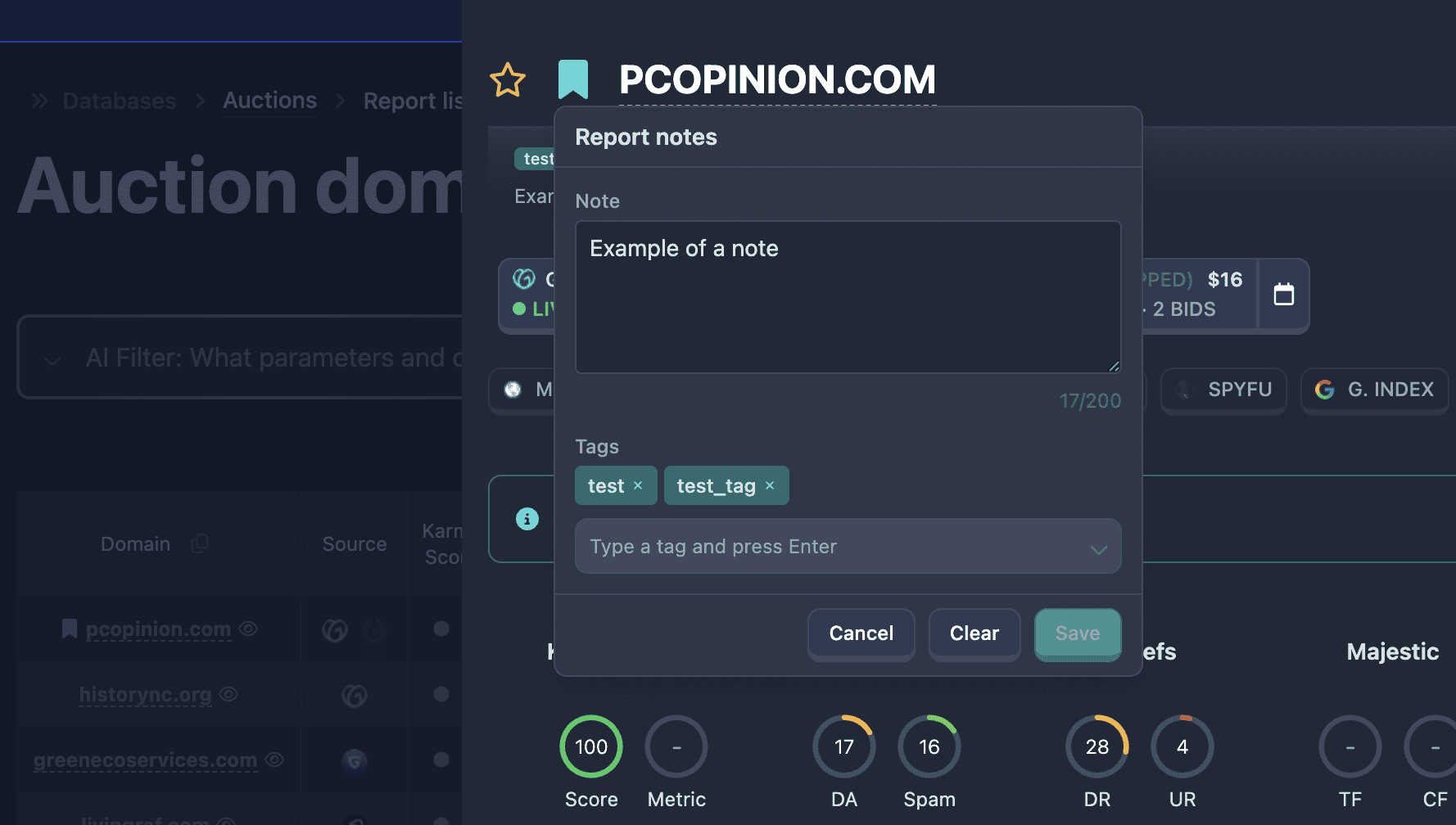
- “Report notes” window
- How saved notes are displayed
- Filtering by notes and tags (Pro)
- Print and sharing
- Errors and common situations
- Related features
- In short
Notes and tags are your personal marks on a domain report: short text and labels for search and tracking. Data is visible only to you in your account; other users and guests via shared link do not see them.
The feature is available on the Pro plan for any full report from database sections and Domain Checker. In demo mode and guest viewing, the notes editor is unavailable.
Button in the report header
To the left of the domain name, next to the favorite star, there is a bookmark icon.
- Empty bookmark — no notes or tags.
- Filled bookmark — a note and/or tags are saved.
Tooltip on hover: “Notes and tags”.
Clicking opens the “Report notes” window. If you are not signed in, registration or sign-in opens.
Who can edit
- Pro — full editor: text, tags, Save, Clear, Cancel.
- Signed in but not Pro — window opens in preview mode with pro badge; fields are inactive, click prompts upgrade to Pro.
- Guest via shared link — no notes icon (same as favorites).
“Report notes” window
Note
Multiline Note field (up to 200 characters). Counter at bottom right: 0/200.
You can leave only tags without text or only text without tags. Empty note and tags on save delete the record entirely.
Tags
The Tags block uses a combobox:
- Selected tags appear as badges above the field; the X on a badge removes the tag.
- In the input you can search among tags you have already used (list loaded from the server).
- Open the dropdown (click the field or arrow) and check the tags you need.
- New tag: enter a name and press Enter or comma — the tag is added if it passes the rules (see below).
Field placeholder: “Enter a tag and press Enter”.
If you have no tags yet, the list shows “No tags yet”; after the first save they appear in filters too.
No more than 10 tags per report.
Tag rules
- Length from 2 to 32 characters.
- Only lowercase Latin, digits, hyphen, and underscore.
- Start and end must be a letter or digit (not a hyphen).
- Spaces are replaced with hyphens on input; case is lowercased (
My Tag→my-tag).
Valid tag examples: vip, hot, to-buy, client_acme.
Action buttons
- Cancel — close without saving, restore last saved state.
- Clear — remove note and tags for this report (active if the draft has text or tags).
- Save — write changes to the server (active only if the draft differs from saved).
After successful save or clear, a notification is shown; the window closes.
How saved notes are displayed
On the report page
Below the header, if there is a note or tags, a callout appears with a “tail” to the bookmark icon:
- at the top — tag badges;
- below — note text (with line breaks as you entered).
The callout is hidden if both text and tags are empty.
In the domain table
In the domain column, rows with a note show a small bookmark. On hover — tooltip with tags and note text (up to 200 characters).
This lets you quickly find marked domains in Auctions, Expired, All domains, and other databases without opening each report.
Filtering by notes and tags (Pro)
In the main filters block (general filters), Pro users get two fields:
With notes
Three-position switch (like favorites):
- Don’t know — ignore;
- Yes — only reports where you have a note and/or tags;
- No — exclude marked reports.
Report tags
Combobox of tags from your saved labels. Label: “Match all selected tags” — results include domains whose note has all selected tags at once (AND logic).
In the filter you can only select existing tags from the list; you cannot create a new tag in the filter (add it in a report first).
With notes and Report tags filters can be combined with other search conditions.
Print and sharing
- Print/PDF — your tags and note text appear on the print title page if saved.
- Share report — the guest sees the full domain report but not your notes and tags.
Errors and common situations
Tag does not save
- Check length and characters (only
a-z,0-9,-,_). - Make sure you have no more than 10 tags.
“Save” button inactive
- Draft matches what is already saved — no changes.
Needed tag missing in filter
- The tag must have been saved at least once in some report in your account.
No notes icon in report
- You are viewing via guest link — notes are only for the session owner.
Note filters show pro
- Pro plan and sign-in required.
Related features
- Report header, favorites, and lots — Report page: header and summary.
- Auction calendar reminder — separate Pro feature for auction deadlines, not related to report tags.
In short
- Bookmark icon in report header → Note (up to 200 characters) and up to 10 tags; Pro only, your account only.
- Tags: lowercase Latin, digits,
-,_; Enter or comma to add. - Callout below header and bookmark in table; With notes and Report tags filters in search (Pro).
- In PDF notes are included; in guest link — not.