- Who can open the print version
- Button in the report header
- Print page (preview)
- What the printed report includes
- Limitations
- Errors and common situations
- Related report features
- In short
The Print/PDF button in the report header opens a print version of the full domain report: summary, metrics, Wayback Machine archive, and other blocks that have data. The page is designed for A4; you save the PDF through the browser print dialog (“Save as PDF” or equivalent).
The feature is available on the Pro plan for any full report from Karma.Domains database sections and from Domain Checker. Printing is not available for guests via shared link.
Who can open the print version
Only a signed-in user on the Pro plan can print a report.
- If you are not signed in, clicking Print/PDF opens registration or sign-in.
- If your plan is not Pro, the button shows a pro badge; clicking opens the Pro plan window (same as Share).
Unlike Share, printing is also available for reports from Checker, not only from Auctions, Expired, Backorder, and Buy Now.
Button in the report header

In the header of a full domain report, next to Share (if shown for that report type), there is a Print/PDF button with a printer icon.
Clicking opens the print page in a new browser tab. The request uses your current session: without signing in, the page will not open.
Print page (preview)
At the top of the preview page there is a fixed control bar (it will not appear on the printed sheet or in the PDF):
- label with the domain name;
- tip: in the print dialog choose Save as PDF;
- Print button — opens the standard OS or browser print dialog.
Below is the formatted report: Karma.Domains logo, document generation date and time, then data sections. Preview UI text and section headings on the print page are currently in English, regardless of the app interface language.
How to save PDF
- Click Print/PDF in the report (or Print on the preview bar).
- In the print dialog choose Save as PDF / Microsoft Print to PDF / Save as PDF (name depends on OS and browser).
- Enter a file name and save.
For paper printing, choose a physical printer instead of PDF. Portrait orientation and A4 are recommended (margins and page breaks are already set in the template).
Enable background graphics / background colors in print settings if you want colored charts and fills as on screen.
What the printed report includes
Content is built from current report data when print is opened. Blocks without data are not included.
Title page and metadata
On the first page:
- domain name;
- report type (report type), added and checked dates;
- drop status for expired domains (Drop status: available, taken, or unknown);
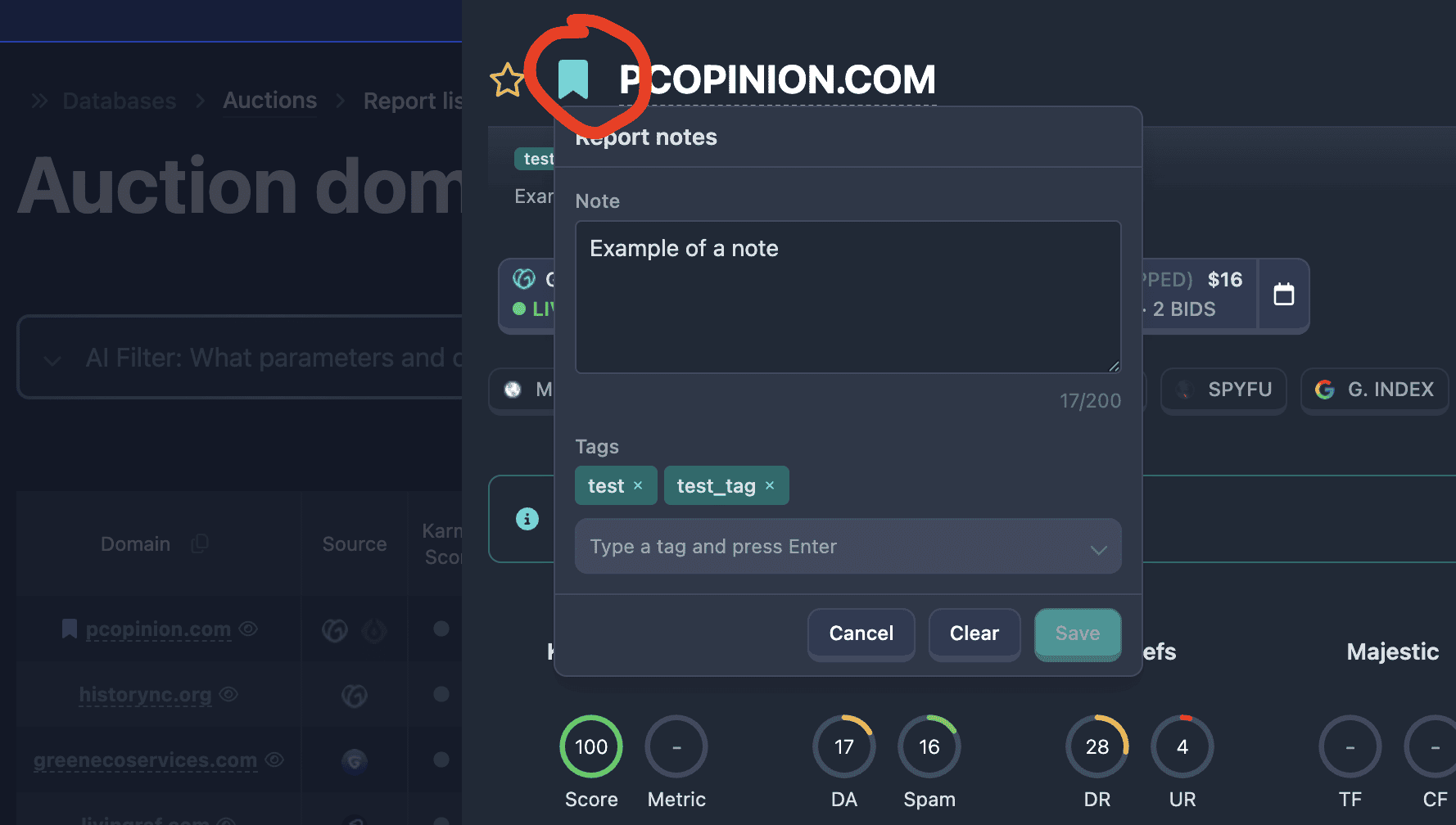
- if present — your report annotation: note text and tags (unlike a guest link, which has no annotation).
Information (domain information)
Domain fields: TLD, length, digits and hyphens in the name, Open PageRank, date added to Karma.Domains. For auction reports — Active Auctions lists and lot history by venue.
Summary
Compact metrics by service, as in the Summary block on the report page: Karma.Domains, Moz, Ahrefs, Majestic, SimilarWeb, Google, Keywords Everywhere, etc. Pie charts, mini graphs, and when available — screenshot of the latest archive snapshot and AI summary. More on the summary in Report page: header and summary.
Detailed sections (each starts on a new page when printing)
When data is available, separate sections are shown:
- Web Archive — archive stats, chart, unique snapshots with screenshot thumbnails (see Wayback Machine in the report);
- Karma.Domains — Karma Score, Domain Metric, content patterns, languages, response codes, tags;
- Google — Google indexing data;
- Moz and Ahrefs — metrics and tables (including Moz DA history if available);
- Majestic — Trust Flow, Citation Flow, top links;
- SimilarWeb — traffic, sources, geography;
- Keywords Everywhere — keywords;
- Blacklists — blacklist checks.
Categories tab and some interactive UI elements (table filters, browser pagination) are not duplicated in the PDF as separate sections: the document includes a print-ready summary of the data.
At the bottom — Generated by Karma.Domains and a link to the site.
Limitations
- Pro only and full report only (not demo).
- Active session required: open print soon after signing in; the page will not load via direct link without authorization.
- PDF is created by the browser, not Karma.Domains servers: appearance (margins, fonts, cropped graphics) may differ slightly in Chrome, Safari, Firefox.
- Document is generated once per request: after report data updates, open print again for an up-to-date version.
- Print page is marked noindex for search engines and is not meant for public access by link without your session.
Errors and common situations
No “Print/PDF” button
- Report in demo mode — open the full report.
- You are viewing via guest link — print only from your own account.
Pro or registration window opens
- Sign in and Pro plan required.
New tab is empty or access error
- Session expired — sign in again and retry from the report.
- Report in demo or no view rights — open the full report in the app.
No colors in PDF or charts cropped
- Enable background graphics / Background graphics in the print dialog.
- Try another browser or reduce scale (e.g. 90–100%).
No annotation in PDF
- Annotation is included only if you saved it in the report before opening print (Pro feature).
Section missing that appears on screen
- Only blocks with non-empty data at generation time are included. If a metric is not loaded in the report, that section is skipped.
Related report features
- Header, summary, and on-screen tabs — Report page: header and summary.
- Share — link for guests without PDF; see Share report.
- Annotations are saved in your account and shown on the print title page but are not passed to shared-link recipients. See Report notes and tags.
In short
- Print/PDF — printable HTML page of the full report, PDF via browser; Pro only, any full report (including Checker).
- Button in report header → new tab → Print → “Save as PDF”.
- Document: title page, domain info, summary, Wayback, Karma, Moz, Ahrefs, Majestic, SimilarWeb, etc. as data allows; annotation on title page if present.
- Guests and demo reports cannot print; to share without an account use Share.